AI Text to Image
Turn text into an image. Write the subject, the light, and the place, and this text to image generator builds a picture from that prompt.
How to turn text into an image
- 1
Write the prompt
Describe the subject, the place, and the light. That sentence is the text to image prompt.
- 2
Choose the look
Pick a style and an aspect ratio for the AI image.
- 3
Generate
Press Generate. The text to image AI opens in the editor with your prompt.
- 4
Download
Wait for the picture to finish, then download it from My Creations.
Frames
Text to image sizes for each platform
The aspect ratio is the shape of the finished picture. Choose it for the place the image will sit.
16:9 Landscape
Use 16:9 for a widescreen text to image picture: a header, a banner, a slide, or a post on a screen.
9:16 Portrait
Use 9:16 to generate an image from text for a story, a pin, or a phone wallpaper. Keep the subject close.
1:1 Square
Use 1:1 for an Instagram post or a product tile. Keep the subject centered so the important part stays in frame.
4:3 Classic
Use 4:3 when the picture needs a little more room than a square, without going fully wide.
Uses
Images you can generate from text
Text to image for Instagram
Generate an Instagram post or story from one sentence. Name the subject and the light, then use 1:1 for the feed or 9:16 for a story.
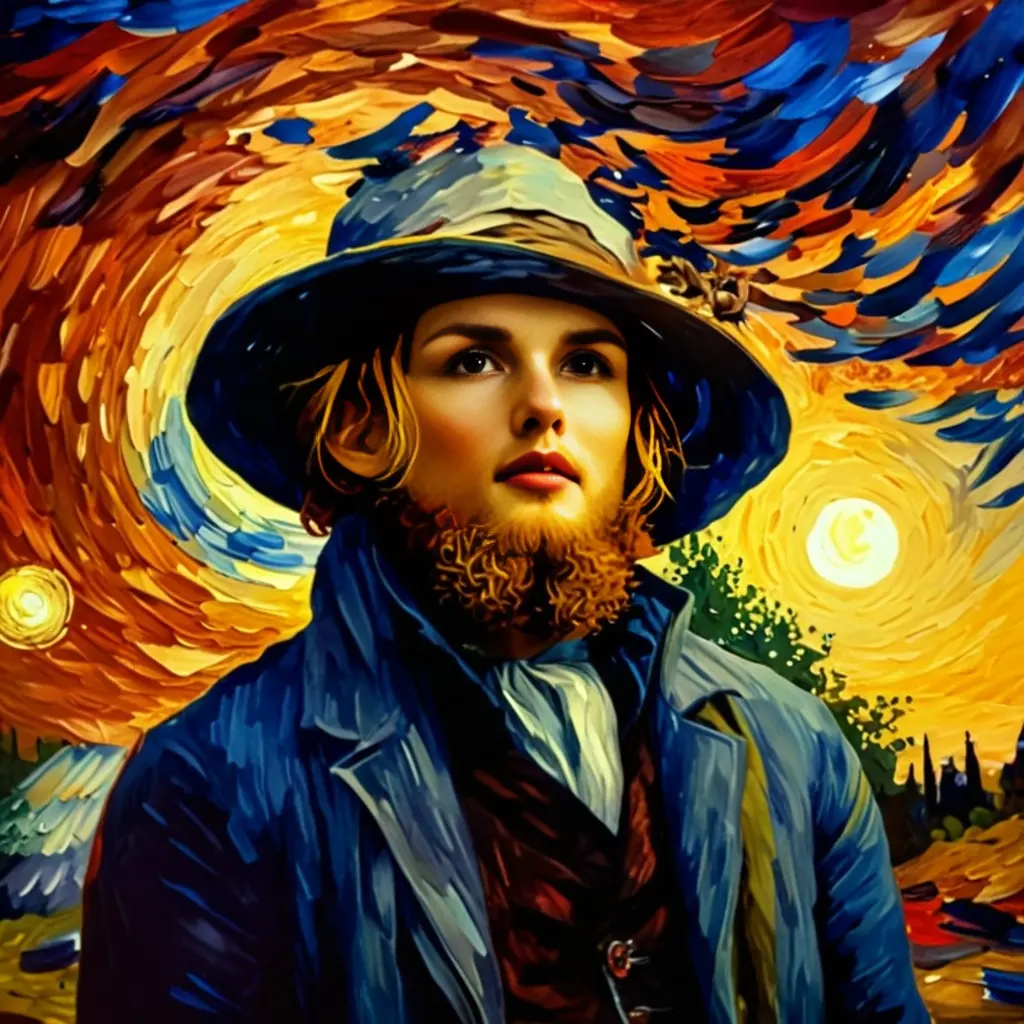
AI product photo from text
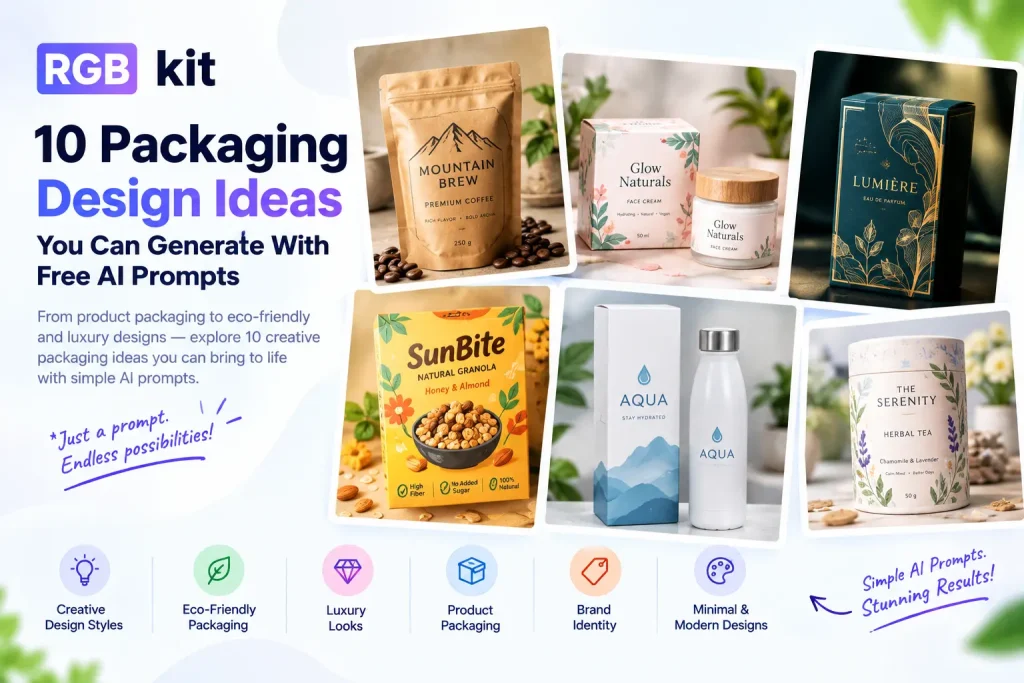
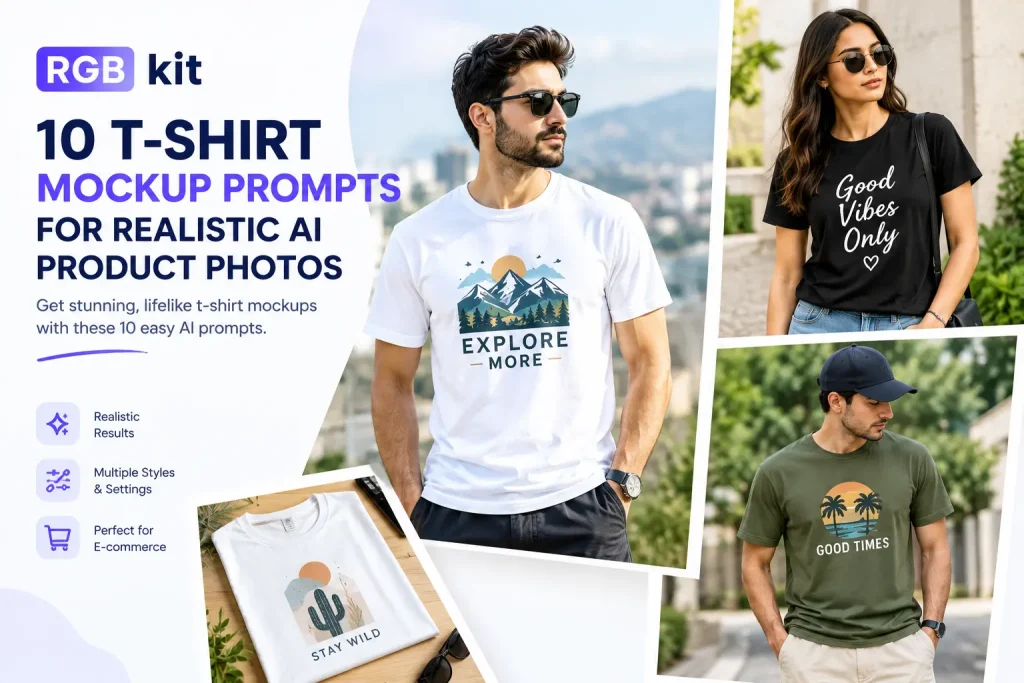
Describe the product, the surface, and the light. A text to image product photo can fill a listing, a catalog, or a shop tile before a studio shoot.
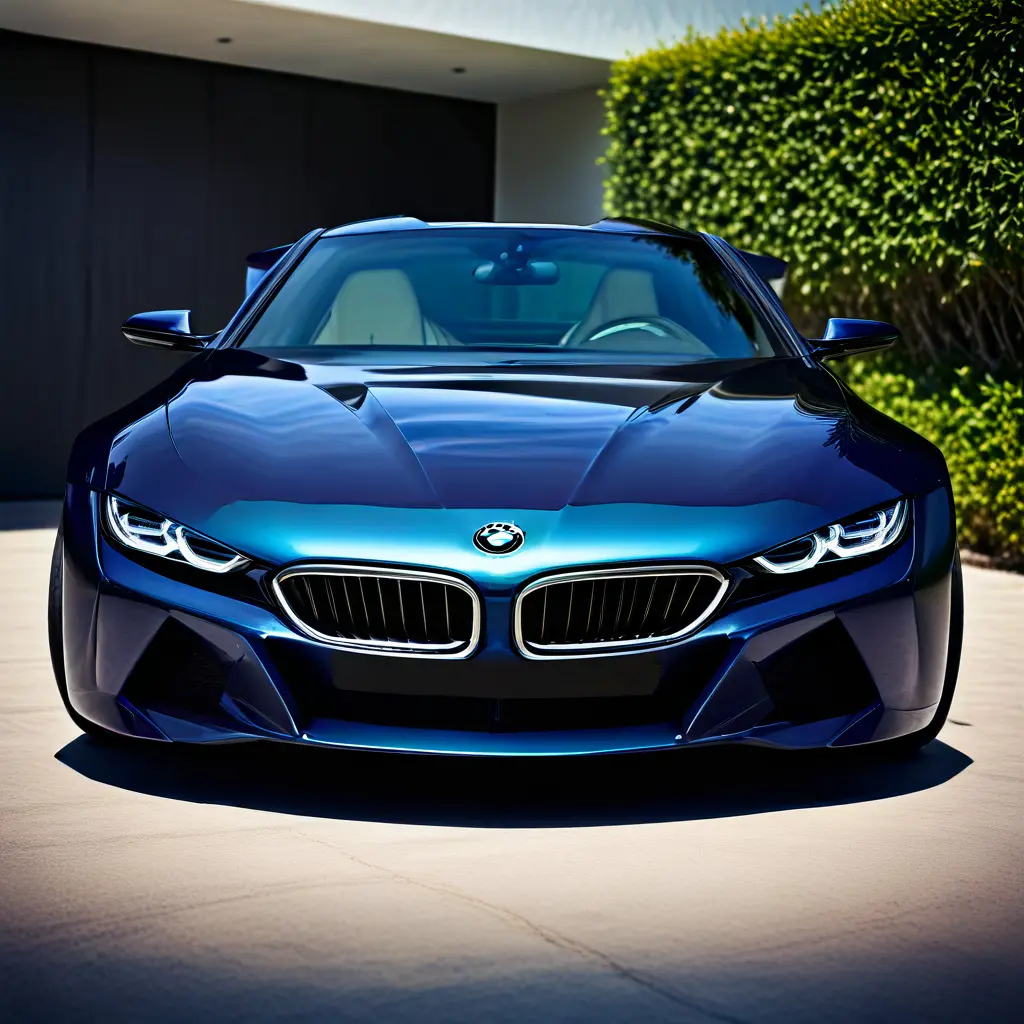
AI ad image from a prompt
Write the product, the mood, and one clear subject. Use the picture as an ad still for a campaign, a banner, or a paid social post.
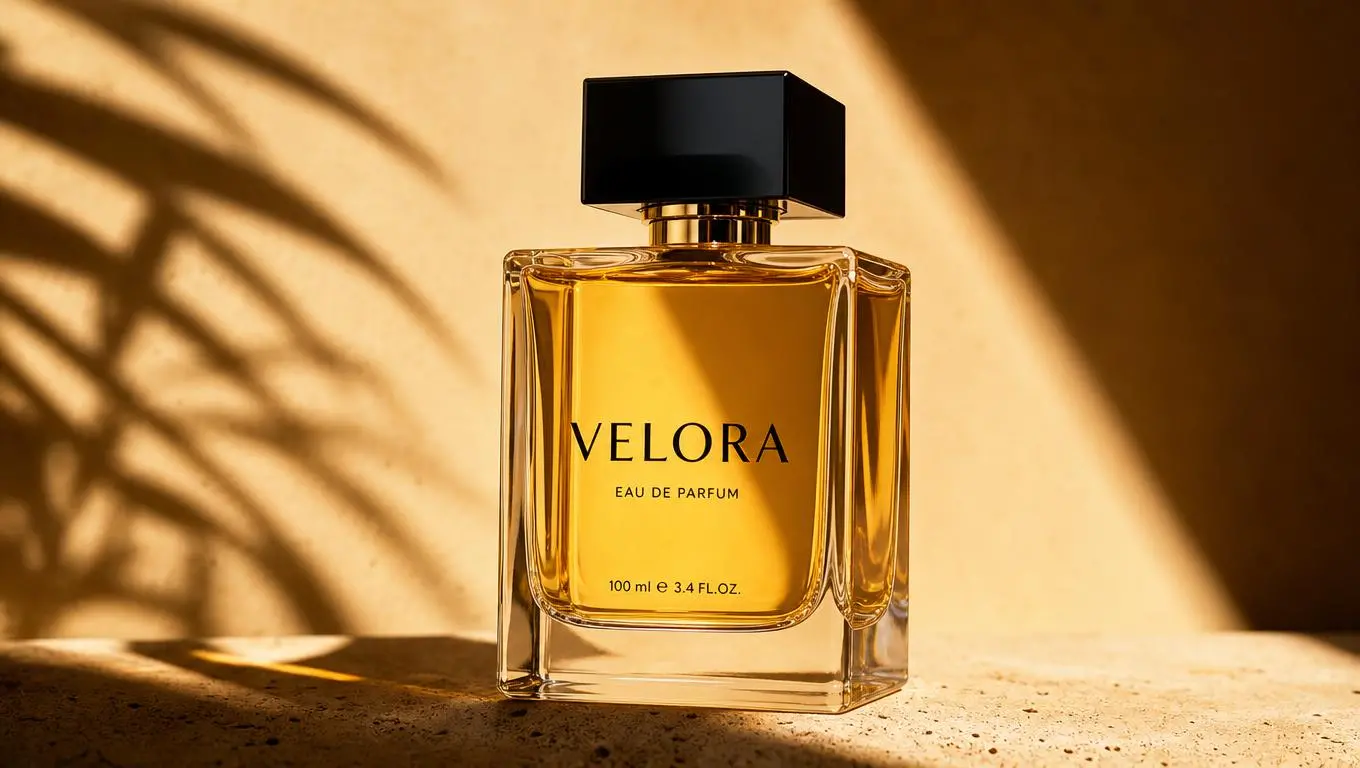
AI art from a text prompt
Name a character, a place, and the light. Text to image turns that sentence into AI art for a poster, a story frame, or a concept still.
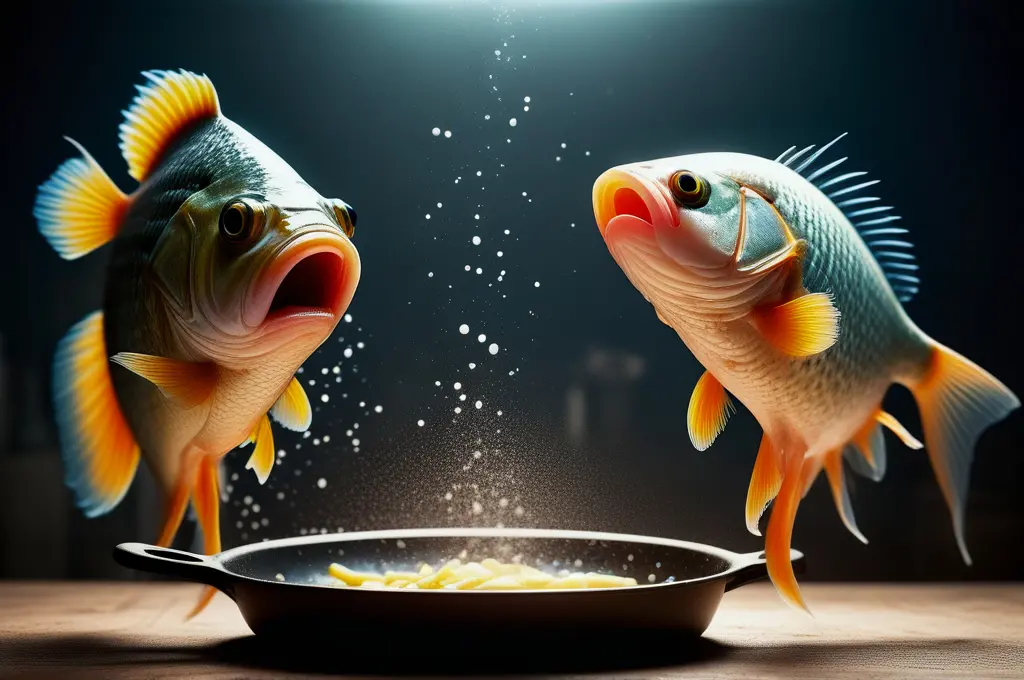
Looks
Styles for text to image AI
Add one look to the prompt. The word tells the generator the mood, the light, and the finish of the text to image picture.
Cinematic
Use cinematic for a finished AI image: wide light, deep color, and a subject that holds the frame. It fits posters, brand stills, and film frames.
Realistic
Use realistic when the image from text should look photographed. Everyday detail and natural light work for products, people, and places.
Anime
Use anime for bold line and saturated color. Name the character, the sky, and the pose so the drawn look holds.
3D
Use 3D for volume and soft shadows. It suits product renders, characters, and worlds you could walk around.
Watercolor
Use watercolor for soft edges and a painted finish. It fits illustrations that should feel made on paper.
Documentary
Use documentary for quiet light and observed moments. It fits street scenes and pictures that should feel recorded.
Text to image
Turn a sentence into a picture. Describe the subject, the place, and the light.
Image to image
Start from a photo when you want the subject to stay and the look to change.
A named look
Cinematic, anime, realistic, 3D, or watercolor. One word sets the finish of the AI image.
Cinematic
Name the color and the mood so the picture from text feels finished.
The right frame
Use 1:1 for a feed, 16:9 for a wide header, 9:16 for a story, and 4:3 for a classic frame.
A clear prompt
Subject, place, and light. A specific sentence is easier to turn into an image than a vague one.
Questions
Frequently Asked Questions
It turns a written prompt into a picture. You describe the scene, and the generator builds the image from that text.
Discover More Tools
Learn text to image
See how a prompt becomes a picture, and how the frame and the look shape it.