AI Text to Video
Turn text into a video. Write the scene, the light, and the camera, and this text to video generator builds a short clip from that prompt.
How to turn text into a video
- 1
Write the prompt
Describe who is in the shot, where they are, and what moves. That sentence is the text to video prompt.
- 2
Set the clip
Choose the frame, the resolution, and how long the AI video should run.
- 3
Generate
Press Generate. The text to video AI builds the clip from your prompt, with sound included.
- 4
Download
Wait for the video to finish, then download it from My Creations.
AI story video from text
Name a character, a place, and one action. The text to video clip becomes the first shot of the story.
Frames
Text to video sizes for each platform
The aspect ratio is the shape of the finished video. Choose it for the place the clip will play.
16:9 Landscape
Use 16:9 for a widescreen text to video clip: YouTube, a film, a website banner, or an ad on a screen. The frame has room for a place and a camera move.
9:16 Portrait
Use 9:16 to generate a video from text for Instagram Reels, YouTube Shorts, TikTok, and Stories. Keep the subject close so it fills the tall frame.
1:1 Square
Use 1:1 for a square feed post or a product tile. Keep the subject centered so the important part of the AI video stays in frame.
Uses
Videos you can generate from text
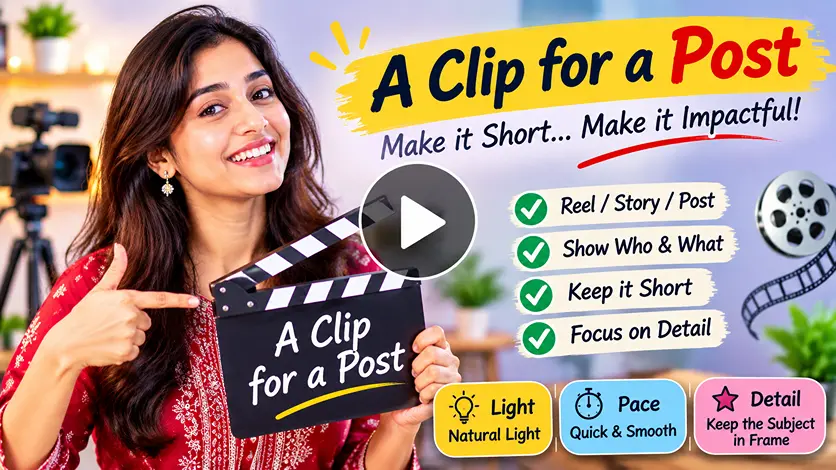
A clip for a post
Write one action for a reel, a story, or a post. Say who appears, what they do, and how close the camera should sit. Choose 9:16 for a phone, and keep the clip to a few seconds so the motion ends before someone scrolls past. Name the light, the pace, and the detail that must stay in frame. Generate the clip and keep the take that reads at a glance.
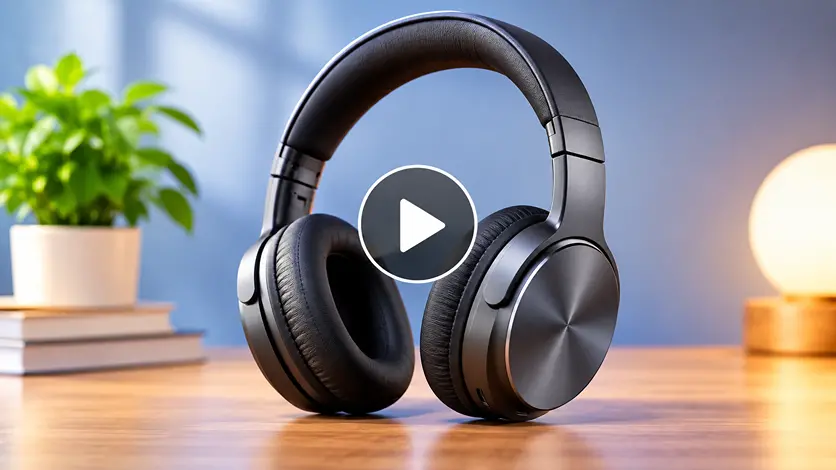
A product in motion
Describe the product, the surface it sits on, and the light around it. Ask for a slow turn so each side can be seen without a reshoot. Keep the object centered, and name the material, the color, and the background so the generator does not invent a different item. Generate the clip, check that the shape stays recognizable, and use it on a product page or in a marketplace gallery.
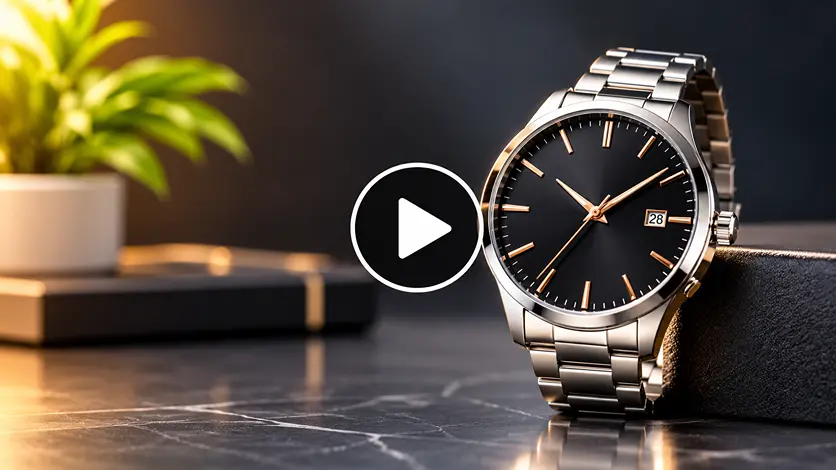
An ad opener
Name the product, the mood, and one confident motion. An ad opener has only a few seconds, so the prompt should hold a single idea. Say whether the light is bold or soft, and where the product sits in the frame. Generate a version, watch the first second, and keep the clip that makes the offer clear. If the motion wanders, rewrite the prompt with one verb and generate again.
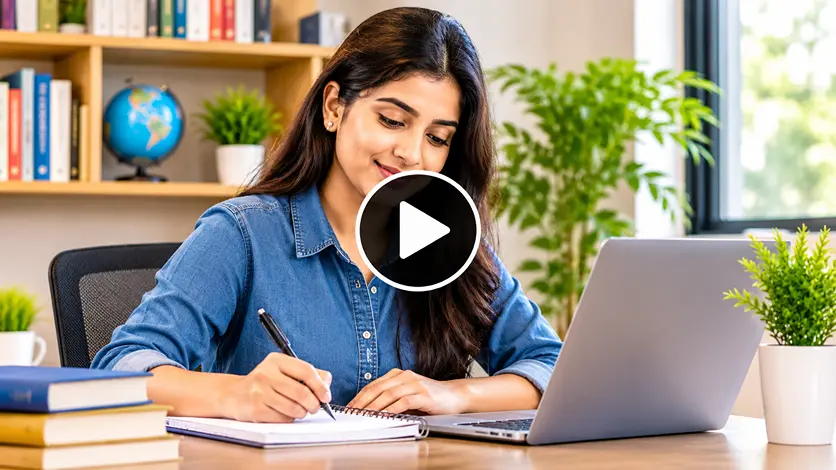
A lesson or a story beat
Describe a person, a place, and the one step they take. A training video works best in that order: who, where, then the action. Add calm light and a steady camera when the clip should teach, or a wider move when it should open a scene. Generate the clip and check that the step is easy to follow. If too much happens, put the next beat in a second prompt.
Looks
Styles for text to video AI
Add one look to the prompt. The word tells Seedance 2.0 the mood, the light, and how the text to video clip should move.
Cinematic
Use cinematic for a film-style AI video: wide light, deep color, and a camera that holds the subject. It fits trailers, brand films, and prompts that should feel finished.
Realistic
Use realistic when the video from text should look photographed. Everyday detail and natural motion work for product demos, people, and places.
Anime
Use anime for a drawn video with bold line, saturated color, and stylized motion. Name the character, the sky, and the action.
3D
Use 3D for volume, soft shadows, and a scene that feels built. It suits product spins, characters, and worlds in the clip.
Cartoon
Use cartoon for simple shapes and a playful pace. It fits explainers, kids stories, and short clips that should read at a glance.
Documentary
Use documentary for a quiet camera and observed moments. It fits interviews, street scenes, and prompts that should feel recorded.
Text to video
Turn a sentence into a finished clip. Describe the action, the place, and the light.
Image to video
Start from a still when you have one, and say how it should move. The first frame stays yours.
Seedance 2.0
This AI text to video generator uses Seedance 2.0. Set the frame, the length, and the sound.
Cinematic
Name the lens, the color, and the mood so the video from text feels finished.
Slow motion
Ask for slow motion when the action in the prompt should read clearly.
Camera move
Pan, dolly, or tracking shot. A camera word gives the clip a path through the scene.
Vertical 9:16
Use 9:16 for Reels, Shorts, and TikTok, 16:9 for YouTube, and 1:1 for a square post.
Audio on
Leave audio on to generate the text to video clip with sound. Turn it off when the shot should stay silent.
1080p
Choose 480p, 720p, or 1080p. A higher resolution uses more credits and stays sharper.
Questions
Frequently Asked Questions
It turns a written prompt into a short video. You describe the scene, and Seedance 2.0 builds the clip from that text.