AI Image to Image
Restyle a photo with a prompt. Upload a reference picture, say what should stay, and this image to image generator builds a new image from it.
How to use an image to image generator
- 1
Upload a reference photo
Add the picture you want to change. Image to image AI uses that photo as the subject of the result.
- 2
Write the change
Describe the new style, light, clothes, or background, and name what must stay, such as the face or the product.
- 3
Choose the frame
Pick a look and an aspect ratio. Match 1:1, 16:9, 9:16, 3:4, or 4:3 to the place the new image will sit.
- 4
Generate and download
Press Generate, wait for the restyled picture, then download the image to image result from My Creations.
Frames
Image to image sizes for each platform
The uploaded photo is the reference. The aspect ratio is the shape of the new image. RGBKit also offers 4:3 when the picture needs a little more width than a square.
16:9 Landscape
Use 16:9 when the restyled image is a website header, a banner, a slide, or a wide ad.
9:16 Portrait
Use 9:16 for an Instagram Story, a Pinterest pin, or a tall post. Leave room around the subject in the reference photo.
1:1 Square
Use 1:1 for an Instagram post, a profile picture, or a product tile. Keep the important part of the photo in the center.
3:4 Portrait classic
Use 3:4 for a portrait, a headshot, or a listing photo that is taller than a square and shorter than a story.
Uses
Photos you can restyle with image to image
A photo you already shot
Upload the still and describe the new light or style. The subject stays, and the image to image finish changes around that reference photo.
A product photo
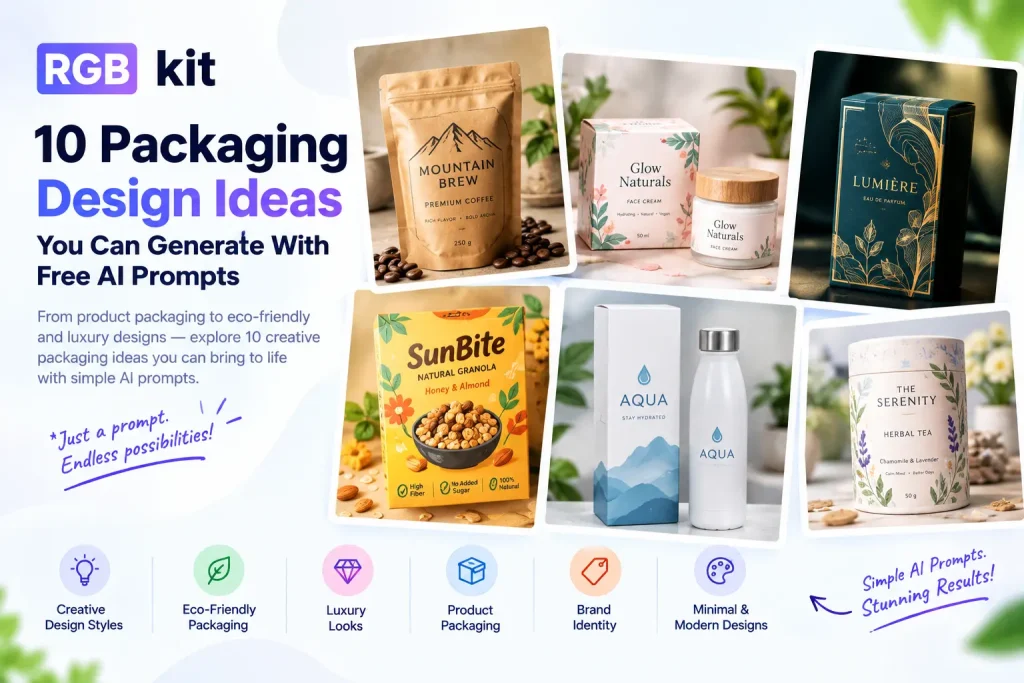
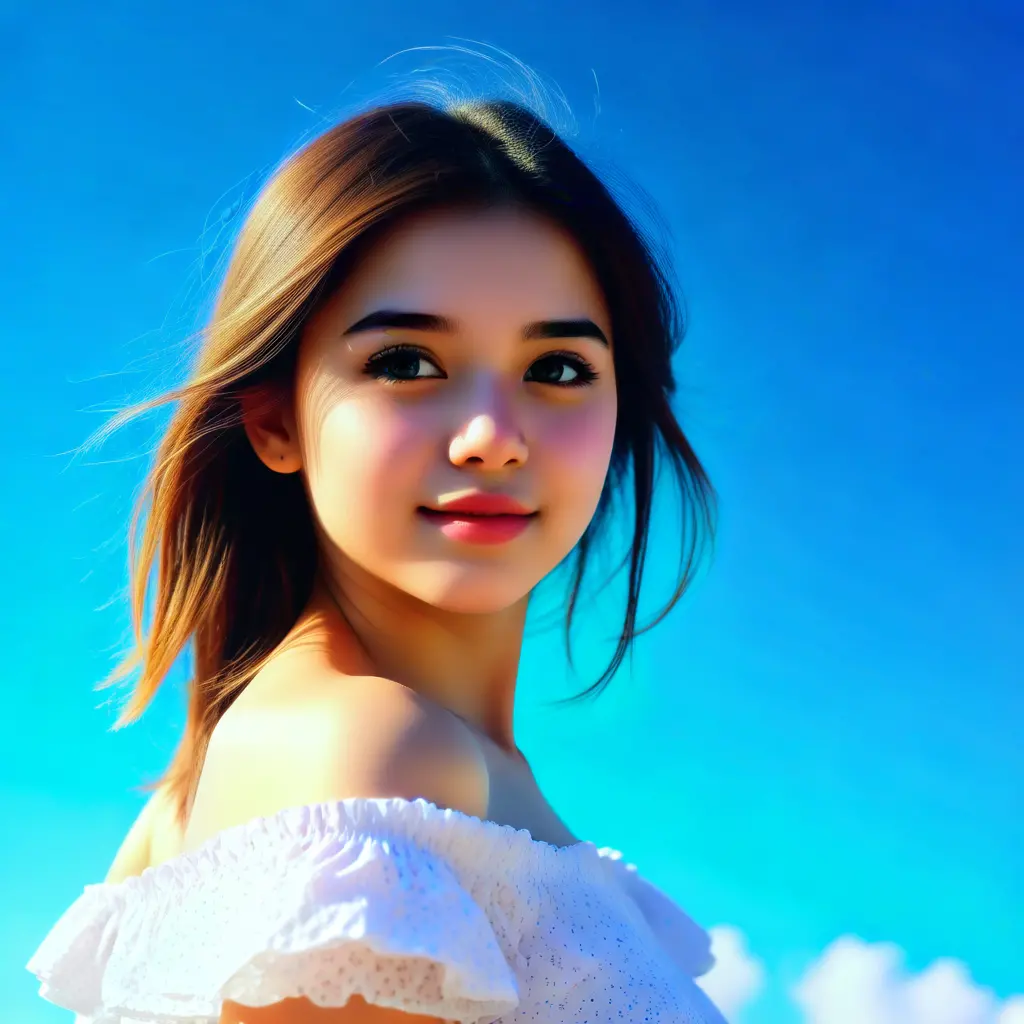
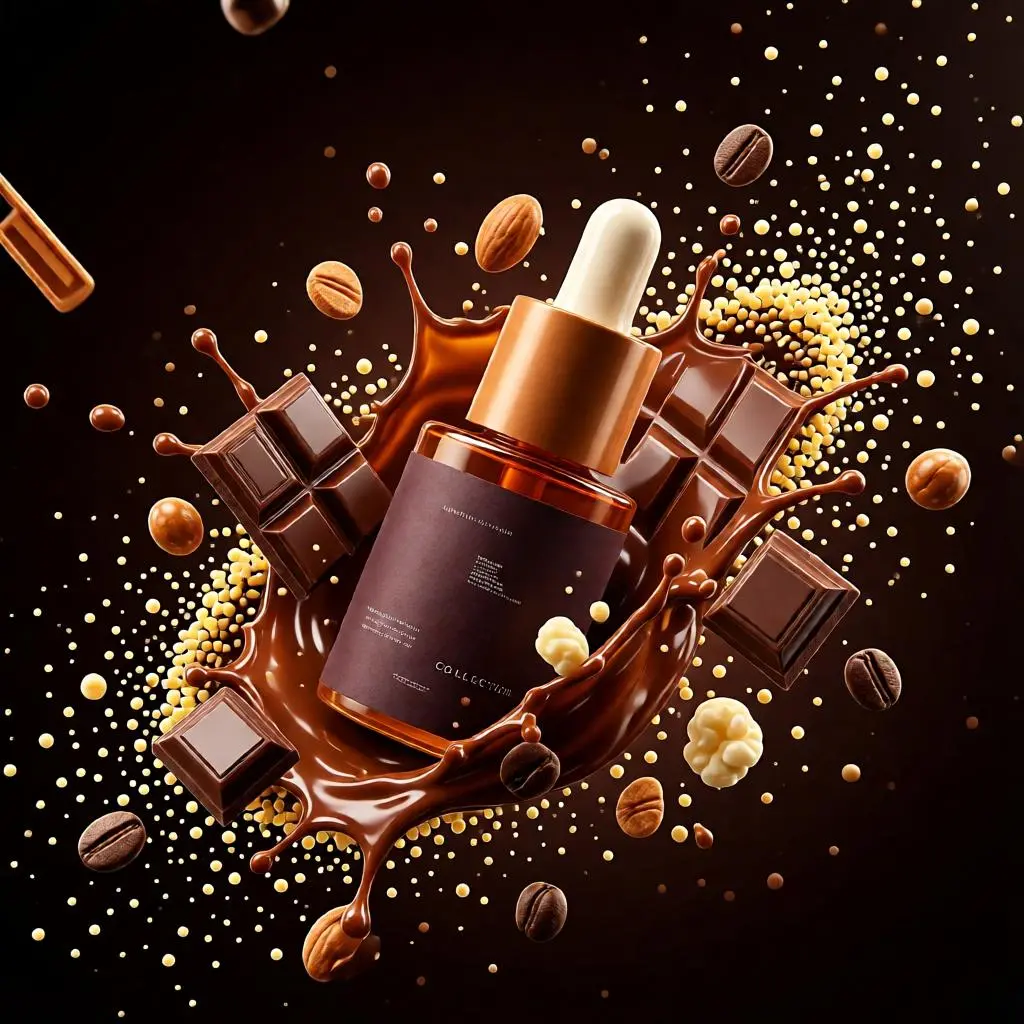
Keep the object and change the surface, the backdrop, or the light so the photo is ready for a product page or a marketplace listing.
A portrait or a headshot
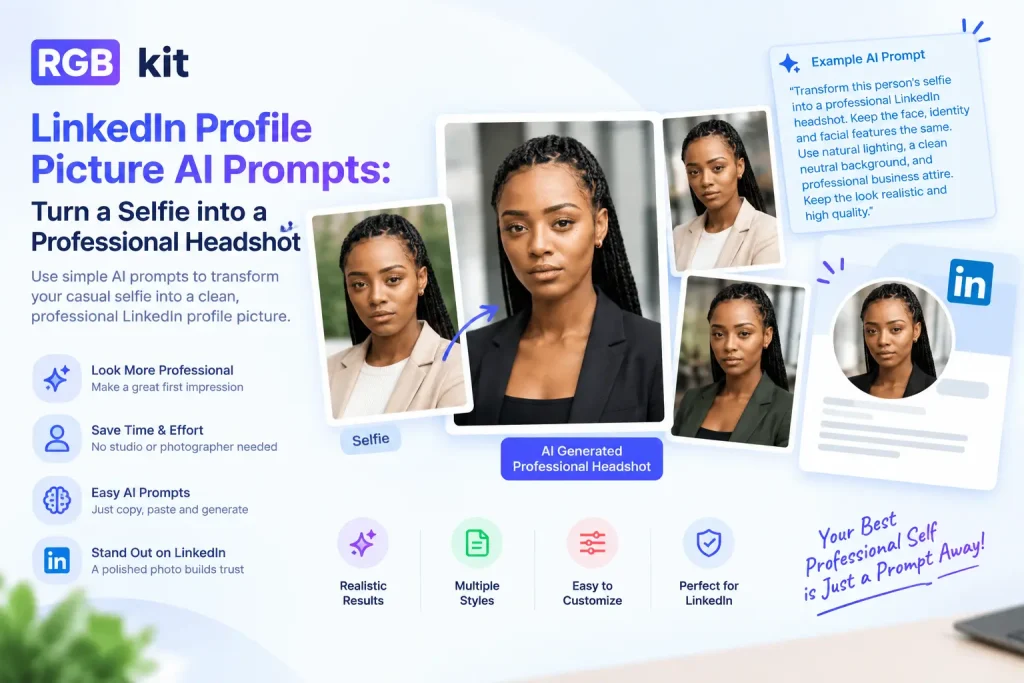
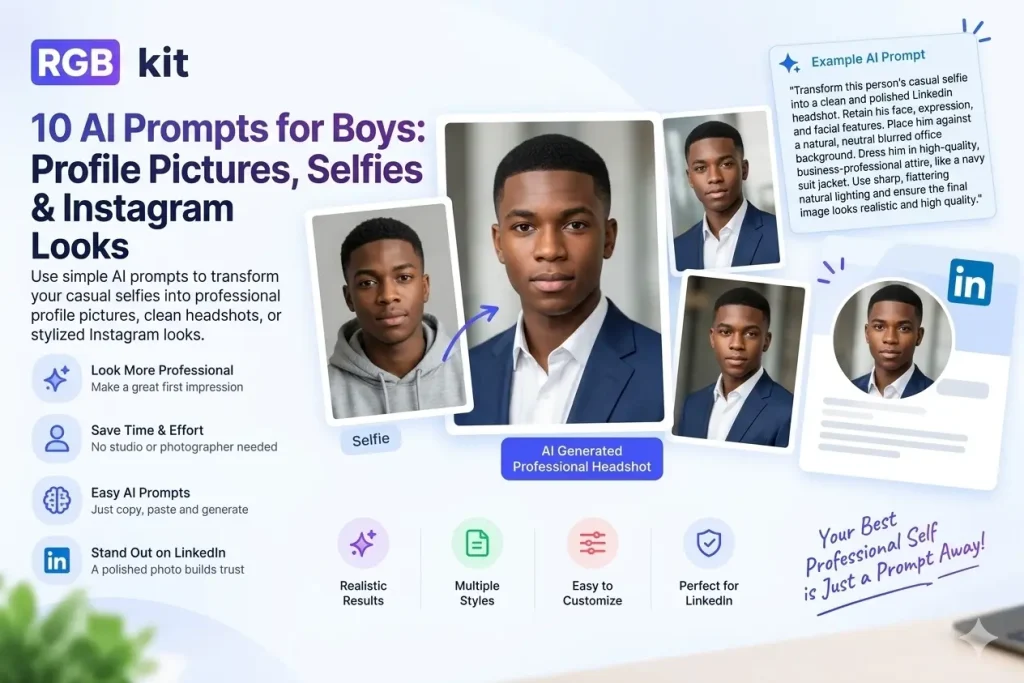
Keep the face. Change the light, the setting, or the clothes, and use the result as a profile picture or a professional portrait.

A poster or an ad
Turn a plain still into a campaign picture. Say what must stay recognizable, then ask for stronger light and a bolder finish.
Looks
Styles for an AI image to image restyle
Add one look to the prompt. The uploaded photo stays the reference, and the word sets the finish of the new image.
Cinematic
Use cinematic for deeper color and a held light. It fits a snapshot you want to feel like a finished still.
Realistic
Use realistic when the restyle should still look photographed. Natural detail keeps a portrait or a product photo believable.
Anime
Use anime for a drawn finish on a real photo. Say that the face or the product must stay recognizable.
3D
Use 3D for volume and soft shadows. It suits a product photo you want to feel rendered.
Watercolor
Use watercolor for soft edges over the photo. It turns a still into an illustration.
Documentary
Use documentary for quieter color and less styling. The photo should feel observed.
Image to image
Upload a photo and describe the change. The picture is the reference for the new image.
A change prompt
Say what stays and what changes. “Keep the face, change the light” is a clear image to image prompt.
Style transfer
Cinematic, anime, realistic, 3D, or watercolor. One look word sets the new finish.
Cinematic
Ask for deeper color and a held light when the restyled photo should feel like a finished still.
A new frame
Choose 1:1, 16:9, 9:16, 3:4, or 4:3 for the post, banner, story, or portrait the image will fill.
Or start from text
Use text to image when you want a new picture from a sentence and have no reference photo.
Questions
Frequently Asked Questions
You upload a photo and describe how it should change. The picture is the reference, and the prompt sets the new style, light, or background.
Discover More Tools
Learn image to image
See how a reference photo and a prompt become a portrait, a product still, or a campaign image.