AI Image to Video
Turn a photo into a video. Upload a picture, describe the motion, and this image to video generator builds a short clip from that first frame.
How to turn an image into a video
- 1
Upload the image
Choose the photo, product shot, or picture you want to animate. That still is the first frame of the video.
- 2
Describe the motion
Write how the photo should move: a slow turn, a camera push, or the subject walking forward.
- 3
Set the clip
Choose the frame, the resolution, and how long the image to video clip should run.
- 4
Generate and download
Wait for the AI photo to video clip to finish, then download it from My Creations.
Product photo to video
Upload a product photo and turn it into a video with a slow turn. The object stays the one in the picture.
Frames
Photo to video sizes for each platform
The aspect ratio is the shape of the finished video. The uploaded photo is the first frame inside that shape.
16:9 Landscape
Use 16:9 when the image to video clip plays wide: YouTube, a website banner, or an ad on a screen. A wide photo has room to move across the frame.
9:16 Portrait
Use 9:16 to turn a photo into a video for Instagram Reels, YouTube Shorts, TikTok, and Stories. A tall picture fills the phone frame.
1:1 Square
Use 1:1 for a square feed post or a product tile. Keep the subject centered in the photo so it stays in frame.
Uses
Photos you can turn into video
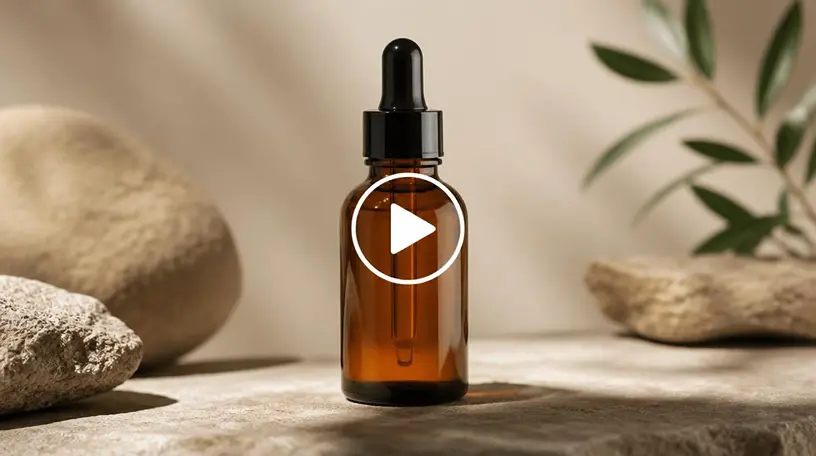
A product photo
Upload the product still and ask for a slow turn and soft light. Product photo to video shows the object moving before a reshoot.
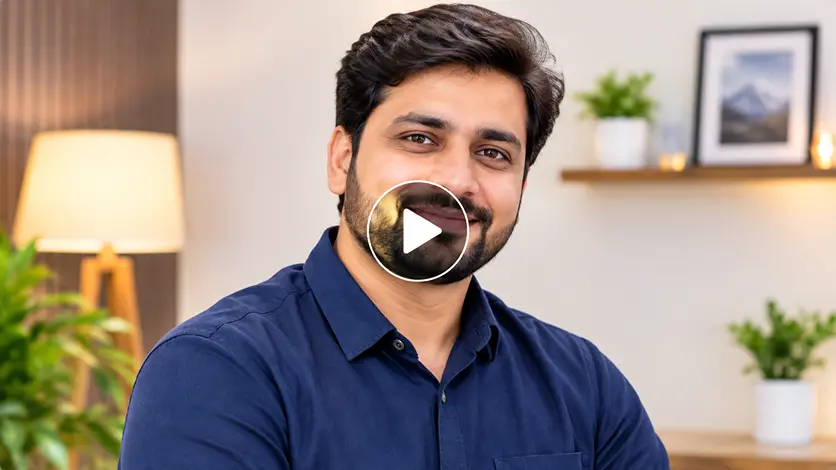
A portrait
Animate a portrait from a face or a full-length photo. Describe a small turn, a blink, or the camera moving closer. The person stays the one in the picture.
A poster or an ad
Convert an image to video from finished artwork. Ask for one motion, such as a push in or a light shift, so the brand image stays recognizable.
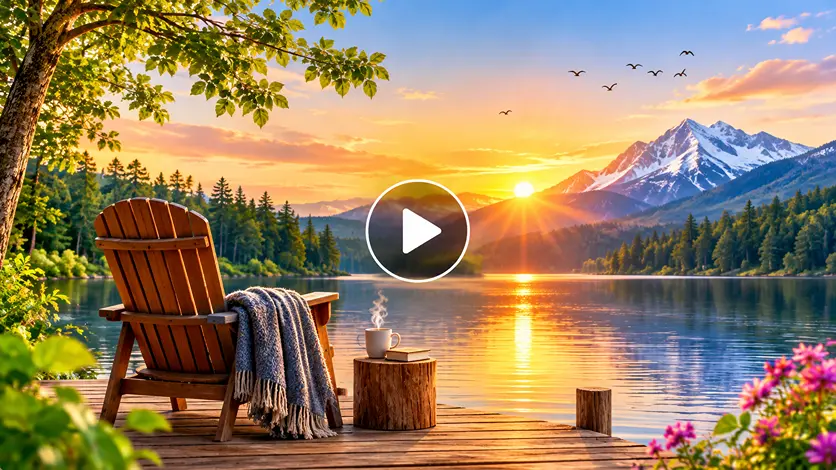
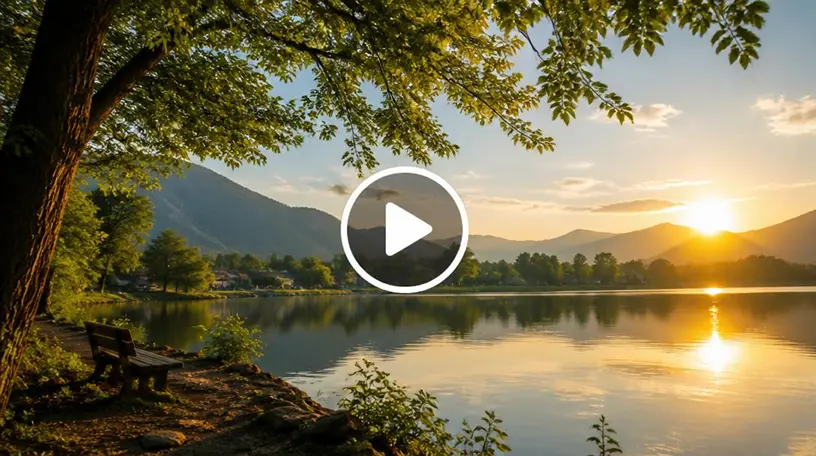
A scene you already shot
Turn a picture of a place into a video. Describe what should move: leaves, water, a person stepping, or the camera drifting.
Looks
Styles for photo to video AI
Add one look when you describe how the photo should move. The word tells Seedance 2.0 the mood of the image to video clip.
Cinematic
Use cinematic when the photo should move like a film shot: wide light, deep color, and a camera that holds the subject.
Realistic
Use realistic when the picture should stay believable as it moves. Everyday detail and natural motion fit product photos and portraits.
Anime
Use anime when a drawn image should keep its line and color while the scene moves. Name the character and the action.
3D
Use 3D when a product or character image should gain volume and turn in soft light.
Cartoon
Use cartoon when a simple picture should move at a playful pace and stay easy to read.
Documentary
Use documentary when a photograph should feel observed. A quiet camera and a small motion keep the video close to the original photo.
Image to video
Upload a photo and describe the motion. The picture you chose stays the first frame of the video.
Motion prompt
The sentence is how the photo moves. Name a turn, a camera push, or the subject stepping forward.
Seedance 2.0
This AI image to video generator uses Seedance 2.0. Set the frame, the length, and the sound around your photo.
Cinematic
Ask for a film look when the photo should move with deeper color and a held camera.
Slow motion
Use slow motion when a small change in the photo should read clearly.
Camera move
Pan, push, or drift. A camera word moves through the picture you uploaded.
Vertical 9:16
Use 9:16 for Reels, Shorts, and TikTok, 16:9 for widescreen, and 1:1 for a square post.
Audio on
Leave audio on to generate the photo to video clip with sound. Turn it off when the shot should stay silent.
1080p
Choose 480p, 720p, or 1080p. A higher resolution uses more credits and stays sharper.
Questions
Frequently Asked Questions
Upload a photo, describe how it should move, and generate. The image to video tool uses that picture as the first frame of a short clip.