You receive a 30-page contract as a PDF. The client wants you to revise sections 4 through 7, update the pricing table, and rewrite the termination clause. You could edit the PDF directly — but this isn’t a quick fix. It’s a substantial rewrite. You need a Word document.
So you try converting the PDF to Word. And that’s when things fall apart.
The tables collapse. The header image shifts to the middle of the page. Bullet points turn into random symbols. The carefully chosen font is replaced with something that looks vaguely similar but not quite right. Columns that were perfectly aligned are now overlapping. The two-page pricing table has become three pages of misaligned cells.
You’ve just discovered the central problem of PDF-to-Word conversion: PDFs and Word documents store content in fundamentally different ways, and bridging that gap without breaking things is harder than it looks.
But it’s not impossible. The right tool, combined with realistic expectations and a few practical techniques, can produce a Word document that faithfully preserves your original formatting.
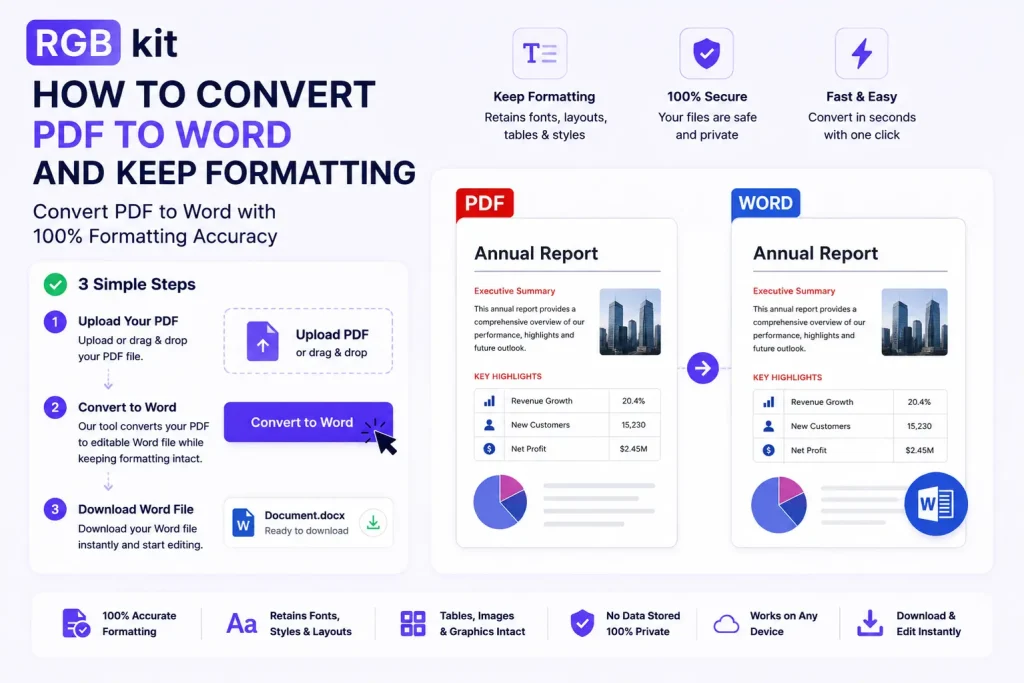
RGBKit’s PDF to Doc tool converts any PDF into an editable Word document while preserving fonts, images, tables, and layout — free, browser-based, no software to install, no account to create.
This guide explains how PDF-to-Word conversion works, why formatting breaks happen, how to get the best possible results, and when conversion is the right choice versus editing the PDF directly.
Why PDF-to-Word Conversion Is Harder Than It Sounds
To understand why formatting breaks during conversion, you need to understand how each format stores content.
How PDFs store content
A PDF doesn’t think in paragraphs, headings, or table cells. It thinks in coordinates. Every character is placed at a specific X,Y position on the page. Every image is anchored to exact pixel coordinates. A “table” in a PDF isn’t actually a table — it’s a collection of text strings and lines that happen to be arranged in a grid pattern. There’s no underlying table structure. No rows. No columns. Just text and lines drawn at precise locations.
This is what makes PDFs look identical on every device — everything is absolutely positioned. But it’s also what makes conversion difficult. A converter has to look at a page full of positioned characters and lines, and reverse-engineer the logical structure: “These characters form a paragraph. These lines and text blocks form a table. This gap is a column break.”
How Word documents store content
Word works in the opposite direction. It thinks in flow. Text flows from one paragraph to the next. Tables are structured objects with defined rows and columns. Images are anchored to text positions. Margins and page breaks are calculated dynamically based on the content.
The translation challenge
Converting PDF to Word means translating absolute positioning into flowing content. It’s like taking a finished painting and trying to reconstruct the step-by-step instructions that produced it. The result can be very close — sometimes nearly perfect — but certain elements inevitably require interpretation.
What Typically Breaks (and Why)
Not all formatting issues are equally likely. Some elements convert reliably every time. Others are predictably problematic. Knowing which is which helps you set expectations and plan your workflow.
Fonts
PDFs embed fonts to ensure exact rendering. When converting to Word, the converter needs to match each embedded font to one available on your system. If the PDF uses a custom or licensed font that isn’t installed on your computer, Word substitutes the closest available alternative. The text is still there — but it might look slightly different.
Impact: Usually minor. Standard fonts like Arial, Times New Roman, and Calibri convert perfectly. Custom and decorative fonts are where substitution happens.
Tables
Simple tables — uniform rows and columns with text in each cell — convert well. Complex tables are where things get unpredictable. Merged cells, nested tables, cells that span multiple pages, tables with background colors and borders, and tables with mixed content (text plus images) all increase the likelihood of layout shifts.
Impact: Ranges from seamless to significantly broken, depending on complexity.
Multi-column layouts
PDFs that use two or three-column layouts (like newsletters, academic papers, or brochures) are particularly challenging. The converter has to decide where one column ends and another begins — and it doesn’t always get it right. Text from different columns can end up merged into a single stream, or column breaks can appear in unexpected places.
Impact: Often noticeable. Simple two-column layouts usually survive. Complex multi-column designs with images spanning columns tend to break.
Headers, footers, and page numbers
These are stored differently in PDFs than in Word. A PDF treats headers and footers as text positioned at the top or bottom of each page. Word uses dedicated header and footer regions. The conversion has to recognize these elements and place them in the right Word structure — which works well for standard headers but can struggle with complex or decorative ones.
Impact: Usually moderate. Simple text headers convert cleanly. Headers with logos, borders, or complex formatting may need adjustment.
Images and graphics
Embedded images generally survive conversion intact — they’re extracted from the PDF and placed in the Word document. The main issue is positioning: an image that was precisely placed in the PDF might shift slightly in Word because Word’s image anchoring works differently than PDF’s absolute positioning.
Impact: Images themselves remain high quality. Their positions may need manual adjustment.
Text boxes and layered elements
PDFs can layer text on top of images, place text boxes at arbitrary positions, and overlay multiple content elements. Word can do some of this with text boxes and shape objects, but it’s less flexible. Complex layered designs often convert as flattened elements or as separate text boxes that need repositioning.
Impact: Varies. Simple overlays convert reasonably well. Complex layered designs often require manual cleanup.
How to Convert PDF to Word — Step by Step
-
Go to RGBKit’s PDF to Doc tool
-
Upload your PDF — drag and drop or click to select the file from your device
-
Let the tool process the file — the converter analyzes the document structure, identifies text, images, tables, and formatting, and rebuilds them as a Word document
-
Download the Word file — save the .docx file to your device
-
Review and refine — open the file in Word and check tables, images, and formatting. Make any minor adjustments needed
The conversion runs in your browser. No software to install, no account to create, and your file stays on your device.
When to Convert PDF to Word (and When Not To)
Conversion is powerful, but it’s not always the right tool. Here’s a clear decision framework.
Convert when you need to:
-
Rewrite large sections of text. If you’re revising paragraphs, restructuring content, or doing a major overhaul, Word’s editing tools are far more efficient than any PDF editor.
-
Update tables with new data. Editing table cells, adding rows, adjusting column widths, and recalculating totals is dramatically easier in Word than in a PDF.
-
Repurpose content from an existing document. You received a report as a PDF and need to pull sections into a new document you’re building. Converting gives you editable text and images you can copy, reformat, and reorganize.
-
Collaborate with others using tracked changes. Word’s track changes, comments, and review features don’t exist in PDF. If you need collaborative editing with revision history, you need a Word document.
-
Apply consistent formatting changes. Changing the font throughout a document, adjusting margins, modifying heading styles — these global changes are trivial in Word and nearly impossible in PDF.
-
Meet a file format requirement. Some submission systems, clients, or workflows specifically require .docx files. If the only version you have is a PDF, conversion is your path forward.
Don’t convert when you only need to:
-
Fix a typo or update a date. Use RGBKit’s Edit PDF tool instead. Direct editing is faster and avoids any formatting risk.
-
Add a signature. Use RGBKit’s Esign PDF tool. No conversion needed.
-
Add or remove pages. Use Remove Pages or Extract Pages. These work directly on the PDF.
-
Highlight or annotate. The Edit PDF tool handles highlighting, shapes, and text annotations directly.
-
Preserve exact original formatting. If the document’s visual appearance is more important than its editability — and you only need minor changes — editing the PDF directly guarantees zero formatting shifts.
The rule of thumb: if the edit takes less than five minutes in a PDF editor, don’t convert. If it requires structural changes, rewriting, or Word-specific features like track changes, convert.
Real-World Scenarios
Lawyers and paralegals
A client sends a signed contract as a PDF. The deal terms have changed, and substantial revisions are needed to sections 3, 5, and 8. Rather than retyping the entire contract, convert to Word, make the edits with track changes enabled, and circulate the redlined version for review.
HR teams
The employee handbook was finalized as a PDF last year. Now policy updates require changes to multiple sections — new PTO policy, updated remote work guidelines, revised benefits information. Converting to Word lets the team make comprehensive edits and re-export to PDF when finished.
Students and researchers
A professor distributes a PDF template for a lab report or thesis. Students need to fill in their own content — data, analysis, references — within the existing structure. Converting to Word preserves the template layout while making the document fully editable.
Marketing and content teams
A partner sends a co-branded PDF document — a case study, whitepaper, or joint press release. Your team needs to update the messaging, swap out statistics, and revise the call-to-action. Converting to Word makes these content changes manageable without redesigning the document from scratch.
Accountants and financial teams
Last year’s annual report exists only as a PDF. This year’s report uses the same structure and layout but needs updated figures, charts, and narrative sections throughout. Converting the previous year’s PDF to Word provides a ready-made template with the correct formatting already in place.
Administrative and operations staff
A vendor sends a standard agreement as a PDF. Your organization needs to add a clause, modify payment terms, and update the effective dates. Rather than requesting an editable version from the vendor (and waiting days for a response), convert the PDF to Word and make the changes directly.
Tips for Getting the Best Conversion Results
These practical techniques consistently produce better outcomes.
Start with a high-quality source PDF
The single biggest factor in conversion quality is the source file. PDFs generated directly from Word, InDesign, PowerPoint, or other authoring tools — where the text is actual text and the structure is defined — convert far better than PDFs created by scanning paper documents.
If your PDF is a scan (pages are essentially photographs of paper), you’ll get a Word file containing images instead of editable text. In that case, run OCR on the PDF first to create a searchable text layer, then convert.
Check fonts after conversion
Open the converted Word file and scan for font substitutions. Word will sometimes flag these with a notification, but not always. If a font looks wrong, check what was substituted and either install the correct font or choose a suitable replacement manually.
Inspect tables carefully
Tables are the most likely element to need post-conversion adjustment. Check that:
-
Rows and columns are correctly structured
-
Merged cells are still merged (or unmerged, as appropriate)
-
Text alignment within cells is correct
-
Column widths make sense for the content
-
Tables that span multiple pages break at appropriate points
Verify image positions
Scroll through the entire document and confirm that images are in the correct locations. In Word, you can adjust image anchoring (inline with text, square wrapping, behind text, etc.) to get images exactly where they belong.
Check headers and footers
Open the header and footer regions in Word (double-click the top or bottom of any page) and verify that the content matches the original PDF. Adjust positioning, logos, and page numbers as needed.
Use styles for consistency
After conversion, Word may not automatically apply heading styles, body text styles, or list formatting correctly. Applying Word’s built-in styles to headings and body text restores the document’s structure and makes future formatting changes much easier.
Save a copy of the original PDF
Always keep the original PDF as a reference. If something looks wrong in the converted Word file, you can compare it against the original to identify what changed and correct it.
PDF to Word Conversion Quality — What to Expect
Not all PDFs convert equally well. Here’s a realistic assessment.
|
PDF Type |
Expected Conversion Quality |
Notes |
|---|---|---|
|
Simple text documents (letters, memos, single-column reports) |
Excellent |
Text, fonts, and spacing convert nearly perfectly |
|
Documents with basic tables (invoices, schedules, simple reports) |
Very good |
Minor table adjustments may be needed |
|
Documents with images (proposals, brochures with photos) |
Good |
Images preserved; positions may shift slightly |
|
Complex layouts (multi-column newsletters, magazine-style pages) |
Moderate |
Column structure may need manual repair |
|
Form-heavy PDFs (government forms, applications with fields) |
Moderate |
Form fields may convert as text boxes; layout may shift |
|
Design-heavy PDFs (brochures, posters, marketing collateral) |
Fair |
Heavy manual cleanup likely; consider editing the PDF directly instead |
|
Scanned PDFs (photographed pages, scanner output) |
Poor without OCR |
Run OCR first, then convert for usable results |
The key takeaway: the simpler and more text-focused the PDF, the better the conversion. Complex visual designs that rely on precise positioning are harder to reconstruct in Word’s flow-based model.
PDF to Word vs. Other Conversion Approaches
Convert vs. Edit the PDF directly
Edit PDF lets you modify text, add images, highlight content, and sign documents without ever leaving PDF format. Zero formatting risk. But it’s limited to surface-level changes — you can’t restructure content, reflow text, or use features like track changes.
Convert to Word when you need structural editing. Edit the PDF when you need quick, precise changes.
Convert vs. Copy-paste from PDF
You can select text in a PDF viewer and paste it into Word. This works for small amounts of plain text, but you lose all formatting — fonts, sizes, colors, bold/italic, headers, and table structure all vanish. You also can’t copy images this way.
Convert to Word when you need formatted content. Copy-paste when you need a quick text excerpt and don’t care about formatting.
Convert vs. Retype the document
Some people, frustrated by conversion issues, simply retype the entire document in Word. This guarantees perfect formatting but wastes enormous amounts of time — especially for long documents.
Convert to Word and fix minor formatting issues. You’ll spend five minutes on cleanup instead of five hours on retyping.
Convert to Word vs. Convert to other formats
If your end goal isn’t Word specifically, other formats might be more appropriate:
-
Need a spreadsheet? Dedicated PDF-to-Excel tools handle tabular data better.
-
Need plain text? Copy-paste or a text extraction tool is simpler.
-
Need images? Use Extract Images instead of converting.
Frequently Asked Questions
How do I convert a PDF to Word for free?
Go to RGBKit’s PDF to Doc tool, upload your PDF, and download the Word file. Free, no signup, no software.
Will converting PDF to Word change the formatting?
A good converter preserves most formatting — fonts, images, tables, and layout. Minor adjustments may be needed for complex documents, but simple text-based PDFs convert with near-perfect fidelity.
Can I convert a scanned PDF to Word?
A scanned PDF contains images of pages, not actual text. To get editable text, first run OCR on the file to create a searchable text layer, then convert to Word.
Why do fonts change when I convert PDF to Word?
PDFs embed fonts within the file. If those fonts aren’t installed on your computer, Word substitutes similar alternatives. Installing the correct fonts before opening the converted file resolves this.
How do I keep tables intact when converting?
Tables with simple, uniform structures convert best. For complex tables (merged cells, nested tables, background colors), expect minor adjustments. Check the table structure after conversion and use Word’s table tools to fix alignment, column widths, and cell merges.
Can I convert a password-protected PDF to Word?
You’ll need to unlock the PDF first. Use RGBKit’s Unlock PDF tool to remove the password (you’ll need to know it), then convert the unlocked file.
Can I convert just specific pages to Word?
Yes. First, use Extract Pages to pull out the pages you need as a new PDF. Then convert that smaller PDF to Word.
Is there a page limit for conversion?
The tool handles standard multi-page PDFs. Very large files may take extra processing time.
Can I convert PDF to Word on my phone?
Yes. The tool works in any mobile browser — iPhone, Android, or tablet. Upload, convert, and download directly on your device.
What’s the difference between .doc and .docx?
Both are Word formats. .docx is the modern format (Word 2007 and later) — it’s smaller, more reliable, and universally supported. .doc is the legacy format. Modern converters produce .docx files.
Can I convert a Word document back to PDF after editing?
Yes. Use RGBKit’s Doc to PDF tool to convert your edited Word document back to PDF with preserved formatting.
The Conversion Workflow: PDF → Word → Edit → PDF
For many professionals, the complete workflow looks like this:
-
Receive a PDF that needs substantial edits
-
Convert to Word using PDF to Doc
-
Review the converted file and fix any minor formatting issues
-
Edit the content in Word — rewrite sections, update tables, add or remove content
-
Convert back to PDF using Doc to PDF for final distribution
This round-trip workflow is standard practice for lawyers revising contracts, HR teams updating handbooks, marketing teams refreshing collateral, and anyone who needs to make structural changes to a document they only have as a PDF.
Related Tools
These tools complement PDF-to-Word conversion and cover adjacent needs.
-
Doc to PDF — convert your edited Word document back to PDF
-
Edit PDF — make quick changes without converting
-
OCR PDF — make scanned PDFs searchable and convertible
-
Extract Pages — pull specific pages before converting
-
Merge PDF — combine multiple PDFs before converting to a single Word file
-
Compress PDF — reduce file size before or after conversion
Final Thoughts
Converting a PDF to Word has always been the easy part. Keeping the formatting intact — that’s the real challenge. Tables stay aligned or they don’t. Fonts match or they’re substituted. Columns hold their structure or they collapse into a single stream.
The difference between a frustrating conversion and a smooth one comes down to two things: using a converter that intelligently reconstructs document structure rather than blindly dumping content into Word, and knowing which elements to check and adjust after the conversion is done.
RGBKit’s PDF to Doc tool handles the hard part — analyzing your PDF’s layout, identifying its logical structure, and rebuilding it as a properly formatted Word document. Free, browser-based, no signup.
The edits you need to make are in the PDF. The tools you need to make them are in Word. The bridge between them doesn’t have to be a minefield.
Explore more free tools: Edit PDF | Doc to PDF | OCR PDF | Compress PDF | Split PDF