You finish a polished proposal, hit send, and the mail server bounces it back. File too large. Or the government portal caps uploads at 10 MB and yours is 10.1 MB.
The usual fix — compress it hard — leaves you with something that looks like it was faxed in 1997. You need the file smaller and looking the same.
RGBKit’s Compress PDF tool does exactly that: free, browser-based, no install, no account.
Why PDFs Get So Large
-
High-resolution images — the biggest culprit. A 300 DPI photo can be 5–15 MB on its own, and it usually looks identical at 150 DPI.
-
Embedded fonts — a full font family with every glyph for every language adds megabytes.
-
Redundant metadata — editing history, XML streams, thumbnails, leftovers from deleted pages.
-
Poor encoding — some generators produce uncompressed text streams and unoptimized images.
-
Scans — every page becomes a full-page photograph. A 50-page scan is 50 images in a trench coat.
How Compression Avoids Quality Loss
Good PDF compression isn’t just JPEG-crushing. It stacks several optimizations, most of which never touch how the document looks:
-
Image resampling — each image is analyzed individually and downsampled to a sensible resolution rather than blanket-reduced.
-
Image recompression — more efficient encoding that drops data the eye can’t perceive.
-
Font subsetting — keeps only the characters actually used, dropping unused glyph sets.
-
Metadata stripping — removes invisible overhead.
-
Structure optimization — merges duplicate resources, removes unused objects, rebuilds cross-reference tables.
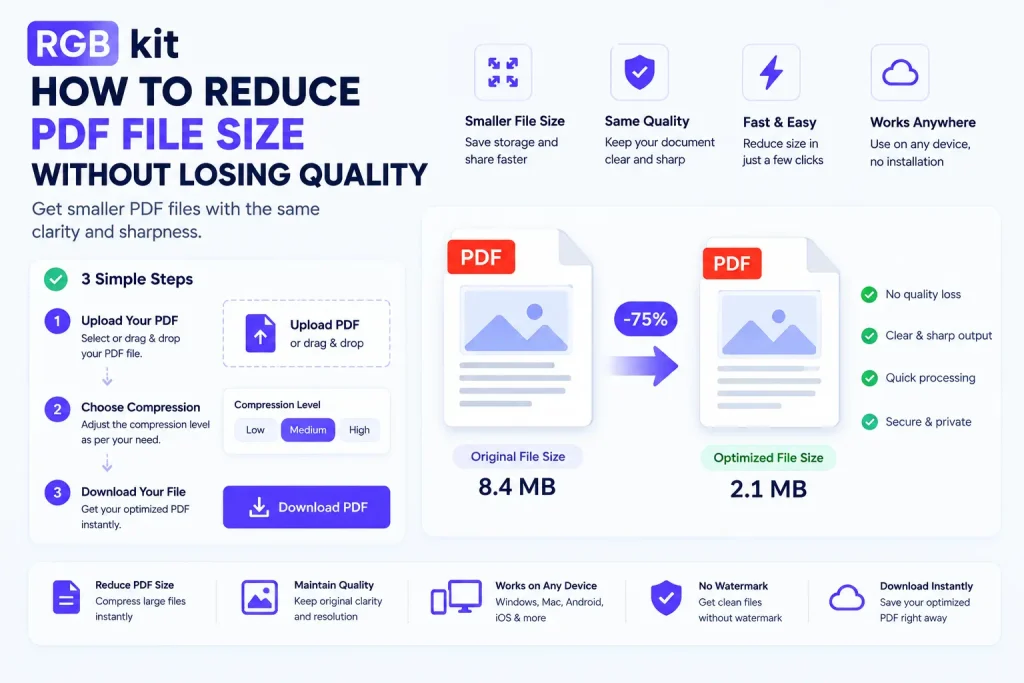
Together these commonly cut 50–80% with no visible difference.
Reduce PDF Size Online — Step by Step
-
Drag and drop your PDF, or click to browse
-
Let it process — compression is automatic
-
Compare the original and compressed sizes it reports
-
Download the smaller file
Everything runs in your browser. Nothing is uploaded to a server, and no account is required.
When You’ll Need It
Gmail caps attachments at 25 MB, Outlook at 20 MB, and many corporate servers lower still. Job, government, and court filing portals reject anything a byte over the limit. Beyond upload limits, large PDFs slow cloud sync across devices, crawl on phones over cellular data, and push website visitors away while a brochure downloads.
It shows up most in image-heavy work: real estate listing packages hitting 40–60 MB, architectural plans in the hundreds of megabytes, legal filings padded with scanned exhibits, theses with microscopy figures, and marketing catalogs built for looks rather than transfer.
How Much Can You Actually Save?
|
PDF Type |
Typical Reduction |
|---|---|
|
Image-heavy (brochures, catalogs, photo books) |
60–80% |
|
Scanned documents |
50–70% |
|
Mixed reports with charts and photos |
40–60% |
|
Text-heavy (contracts, manuscripts) |
10–30% |
|
Already-optimized PDFs |
5–15% |
The biggest gains come from files nobody optimized in the first place — which is most of them.
Compress vs. Other Ways to Shrink a PDF
Compression reduces the actual data. These alternatives just move it around or throw some away:
-
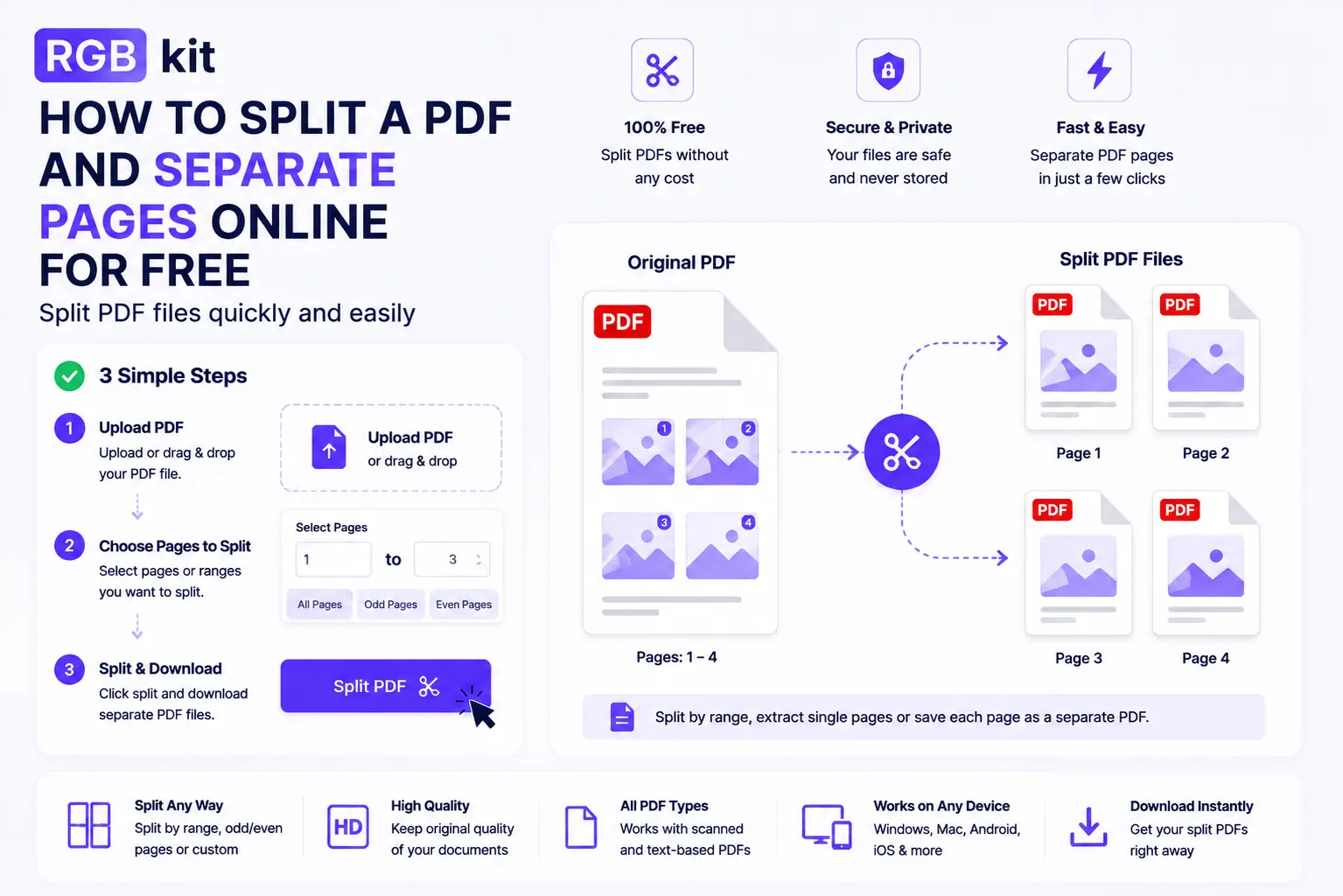
Split PDF divides one file into several. Same total data — useful only when the recipient accepts multiple files.
-
Remove Pages deletes what you don’t need. Best when whole sections are irrelevant.
-
Extract Pages keeps only a chosen section instead.
For the smallest possible file, remove unneeded pages first, then compress what’s left.
Tips for the Smallest File Without Quality Loss
-
Delete blank, duplicate, and irrelevant pages before compressing.
-
When creating the PDF, export images at 150 DPI for screen or 200 DPI for print.
-
Avoid pasting screenshots — use the original image files, which compress far better.
-
Compress once. A second pass rarely helps and can degrade quality.
-
Match the compression level to the destination: print jobs need more resolution than screen viewing.
-
Keep the uncompressed original in case you need a high-quality version later.
Frequently Asked Questions
How do I reduce PDF file size for free? Upload your file to RGBKit’s Compress PDF tool and download the compressed version. No signup, no software.
Will compressing a PDF make it blurry? No. Smart compression optimizes images, fonts, and internal structure without visible quality loss at normal viewing sizes.
Can I compress a scanned PDF? Yes, and scans usually see the biggest gains since every page is an image that can be optimized.
Will compression remove text or pages? No. It changes how data is stored, not what the document contains.
Can I compress a password-protected PDF? Unlock it first with RGBKit’s Unlock PDF tool (you’ll need the password), then compress.
Do forms and interactive elements survive? Yes. Form fields, checkboxes, and interactive elements are preserved.
Can I compress a PDF on my phone? Yes. The tool runs in any mobile browser on iPhone, Android, or tablet.
Is “reduce size” different from “compress”? No. Compression, optimization, and size reduction all describe the same process.
Related PDF Tools
-
Merge PDF — combine files into one, then compress the result
-
Split PDF — divide a large PDF into distributable parts
-
Remove Pages — cut pages before compressing
-
Extract Images — pull out visuals without the document
-
OCR PDF — turn scans into searchable text, often smaller too
-
Image to PDF — build PDFs with proper compression from the start
Final Thoughts
The images inside your PDF are stored at a resolution nobody will notice, the fonts carry glyphs nobody will type, and the metadata records edits nobody will read. All of that can go without changing how the document looks.
RGBKit’s Compress PDF tool handles it in seconds. The file you need to send can be half its current size, and no one will know the difference.