You email an invoice. Someone forwards it. Your bank details land in the wrong inbox.
Or a contract draft ends up on a shared drive. Or a USB with tax files goes missing. An unprotected PDF is an open book once it leaves your device.
The fix takes seconds: add a password before you share it.
RGBKit’s Lock PDF tool locks any PDF for free — no install, no account. Only people with the password can open it.
Why Password Protect a PDF?
By default, anyone who gets a PDF can open it. Password protection encrypts the file so a password is required first. Use it for:
-
Financial files — tax returns, bank statements, invoices with payment details
-
Legal and business docs — contracts, NDAs, pricing, HR records
-
Identity and health records — ID scans, medical reports, insurance claims
-
Anything you’d hate to see on a public website
It also helps with basic compliance expectations under rules like GDPR and HIPAA: you’ve taken a reasonable step to protect sensitive data in transit.
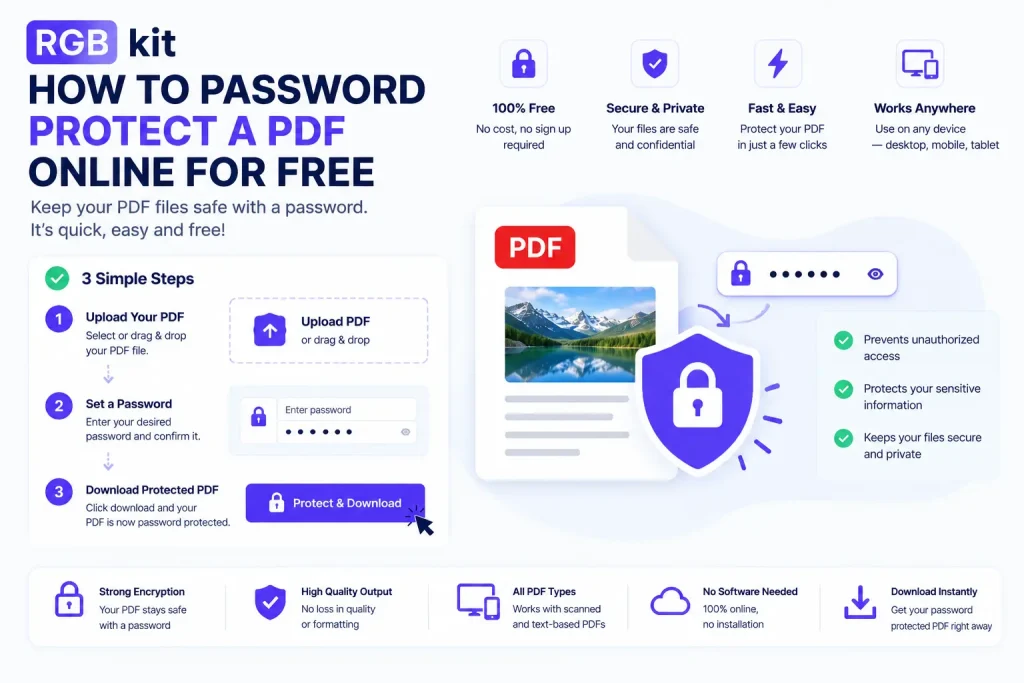
How to Lock a PDF with RGBKit
Three steps. No software, no account, no cost.
-
Go to RGBKit’s Lock PDF tool and upload your PDF
-
Enter a strong password
-
Click lock and download the protected copy
The original file stays unchanged. You get a new, encrypted version ready to share.
What Password Protection Actually Does
The PDF is encrypted. Without the password, the contents stay unreadable — even if someone intercepts the email, finds a lost drive, or gets a forwarded copy.
|
Action |
Without password |
With password |
|---|---|---|
|
Open the file |
Anyone can |
Password required |
|
Forward or intercept |
Full content visible |
Still locked |
|
Found on a lost device |
Immediate access |
Password required |
For most personal and small-business sharing, that’s enough. Highly regulated environments may also need redaction, signatures, or DRM.
How to Create a Strong PDF Password
A weak password is barely better than none.
Do:
-
Use at least 12 characters with mixed case, numbers, and symbols
-
Use a unique password (and a password manager)
-
Send the password on a separate channel — if the PDF goes by email, send the password by SMS or chat
Don’t:
-
Use names, birthdays, or dictionary words
-
Put the password in the same email as the attachment
-
Reuse your email or banking passwords
Tips for Managing Locked PDFs
-
Keep an unlocked original in a secure place so you don’t lock yourself out
-
Name files clearly (
invoice-april-2026-locked.pdf) so you can tell versions apart -
Tell recipients a locked file is coming and how they’ll get the password
-
Need to remove a password later? Use Unlock PDF (you’ll need the current password)
Frequently Asked Questions
How do I add a password to a PDF for free? Upload it to RGBKit’s Lock PDF tool, set a password, and download. Free, no signup.
Can I do this without paid software? Yes. It runs entirely in your browser — no install or subscription.
What if someone opens it without the password? They can’t. They only see a password prompt until the correct one is entered.
Can I remove the password later? Yes, with Unlock PDF if you know the current password.
Is my file safe during the process? Files are processed securely and not stored permanently.
Can I lock a PDF on my phone? Yes — any mobile browser on iPhone, Android, or tablet.
Does locking reduce quality? No. Encryption doesn’t change content, images, or formatting.
Related PDF Tools
-
Unlock PDF — remove a password when you have it
-
Watermark PDF — mark drafts as confidential
-
Redact PDF — permanently remove sensitive text
-
Compress PDF — shrink the file before sharing
-
Merge PDF — combine files, then lock the result
Final Thoughts
If a document is worth protecting, lock it before it leaves your device. It takes seconds and costs nothing.
RGBKit’s Lock PDF tool — upload, set a password, download. No software, no signup.