You have the cover letter in one file. The resume in another. The portfolio in a third. The references in a fourth. The job application portal has a single upload button.
Four files. One slot. Now what?
Or you’re putting together a client proposal. The executive summary lives in one PDF, the technical specification in another, the pricing schedule in a third, and the terms and conditions in a fourth. You could email them as four attachments and hope the client opens them in the right order — or you could combine them into one polished document where everything flows from beginning to end.
Or you’re filing a legal motion with six exhibits. The court’s e-filing system expects a single PDF. Six separate files won’t work.
Merging PDFs is one of the most common document tasks in existence, and one of the most unnecessarily complicated — because the tools people already have (PDF viewers, email clients, file managers) don’t do it. You can open a PDF. You can print a PDF. You can email a PDF. But you can’t drag one PDF into another and combine them. That requires a dedicated tool.
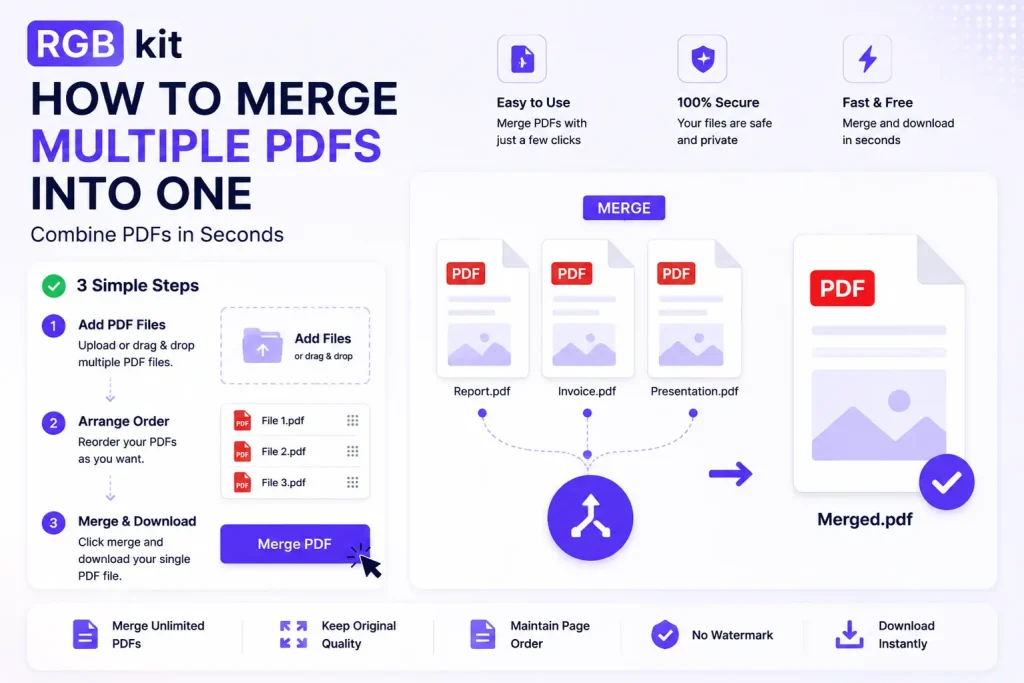
RGBKit’s Merge PDF tool combines any number of PDF files into a single document — in the order you choose, with all formatting and quality preserved. Free, browser-based, no software to install, no account to create.
This guide covers how to merge PDFs, how to get the best results, and how merging fits alongside related tools like splitting, rearranging, and compressing.
How to Merge PDFs — Step by Step
-
Go to RGBKit’s Merge PDF tool
-
Upload your PDF files — drag and drop multiple files at once, or click to browse and select them from your device
-
Arrange the order — drag the files into the sequence you want them to appear in the final document. The first file in the list becomes the first pages, the second file follows, and so on
-
Merge — click to combine them into a single PDF
-
Download the merged file — save the combined document to your device
The entire process runs in your browser. Your files stay on your device, nothing is uploaded to a remote server, and no account is required.
When You Need to Merge PDFs
Combining files sounds straightforward, but the situations that require it are everywhere. Here are the most common.
Job and university applications
Application portals almost universally provide a single upload field — one PDF, one chance. But your application materials were created separately: resume in Word, cover letter in Google Docs, transcript from the university website, recommendation letters as scanned PDFs. Each became its own file. Merging turns them into one seamless submission.
Client deliverables
Proposals, reports, and project packages are rarely created as a single document. The executive summary comes from one team. The financial projections come from another. The appendices arrive from a third. Delivering them as separate attachments looks disorganized. Merging them into one PDF presents a unified, professional package.
Legal filings
Court systems, regulatory bodies, and compliance platforms impose strict requirements: one document per filing, all exhibits attached, everything in order. A motion with supporting exhibits, a patent application with drawings, a compliance report with appendices — they all need to be merged into a single file before submission.
Financial documentation
Loan applications require bank statements, tax returns, pay stubs, and identification — often spanning months or years. Each document is a separate PDF. The lender wants them in one file. Mortgage applications, business loan packages, and investor decks all follow the same pattern.
Insurance claims
Filing a claim means gathering documentation: the claim form, photos of damage, repair estimates, police reports, medical records, receipts. Each is a separate file. The insurance portal expects a single PDF upload. Merging gets everything into one package.
Internal reports and presentations
Monthly reports, quarterly reviews, board meeting materials, and training manuals are assembled from contributions by different departments. HR sends the headcount report. Finance sends the P&L. Marketing sends the campaign results. Merging combines all contributions into one cohesive document.
Academic and research submissions
Journal submissions, thesis chapters, grant applications, and conference papers often require supplementary materials — figures, data tables, letters of support — to be included as part of the main document. Merging appends these materials to the primary file.
Real estate transactions
A property closing package might include the purchase agreement, inspection report, title search, survey, appraisal, insurance binder, and lender documents. Every party in the transaction — buyer, seller, agents, lender, title company — needs a complete package. Merging creates it.
Real-World Scenarios
Freelancers
You finished a design project. The deliverables include a brand guide, logo variations sheet, color palette reference, and typography spec. Instead of sending four separate PDFs and a paragraph explaining which is which, merge them into a single “Brand Identity Package” that the client can review from beginning to end.
Teachers and professors
You’re assembling a final exam. The reading comprehension section is in one file, the essay prompts in another, the answer sheet in a third, and the grading rubric in a fourth. Merge them into a single exam document that’s ready to print and distribute.
Accountants
Tax season means consolidating documents. A client’s return includes W-2s, 1099s, deduction receipts, prior year returns, and preparer notes. Merging creates a complete client file that can be stored, transmitted to the IRS, or shared with the client as one organized package.
Event planners
A vendor package for an upcoming conference includes the venue contract, catering agreement, AV equipment list, floor plan, and insurance certificate. Merge everything into one file so the event coordinator — and every stakeholder — has the complete picture in a single document.
Healthcare administrators
A patient referral package includes the referral letter, medical history summary, lab results, imaging reports, and insurance authorization. Merging combines them into a single file that can be securely transmitted to the receiving provider.
Construction project managers
A permit application requires site plans, engineering calculations, environmental assessments, and contractor certifications. The building department wants one PDF. Merging makes it possible.
Getting the Best Results When Merging PDFs
Merging is mechanically simple — files go in, one file comes out. But a few practical considerations make the difference between a merged PDF that looks professional and one that looks like a pile of documents thrown together.
File order matters
The first file you upload becomes the first pages of the merged document. The second file follows immediately after. This sounds obvious, but it’s easy to upload files in the wrong order — especially when you’re selecting multiple files from a folder and the file manager sorts them alphabetically or by date modified rather than by the order you need.
Before merging, think about the final document’s structure. If you’re assembling a proposal, the cover page should be first, followed by the executive summary, then the details, then the appendices. Arrange accordingly.
Page sizes don’t need to match
You can merge PDFs with different page sizes — letter and A4, portrait and landscape, standard and legal — into a single file. Each page retains its original dimensions. This is useful when combining documents from different sources (an American letter-sized report with European A4 appendices, for example), but be aware that mixed page sizes can look inconsistent when printed.
Quality is preserved
Merging doesn’t recompress, re-render, or degrade anything. Each page in the merged file is identical to its original. Text stays sharp. Images stay at their original resolution. Fonts stay embedded. The merge operation is purely structural — it’s combining containers, not altering contents.
Add page numbers after merging
The original files probably have their own page numbering (or none at all). After merging, the combined document’s page numbers may be inconsistent — file one ends on page 12, file two starts on page 1 again. Use Add Page Numbers to apply continuous page numbering across the entire merged document.
Compress after merging if needed
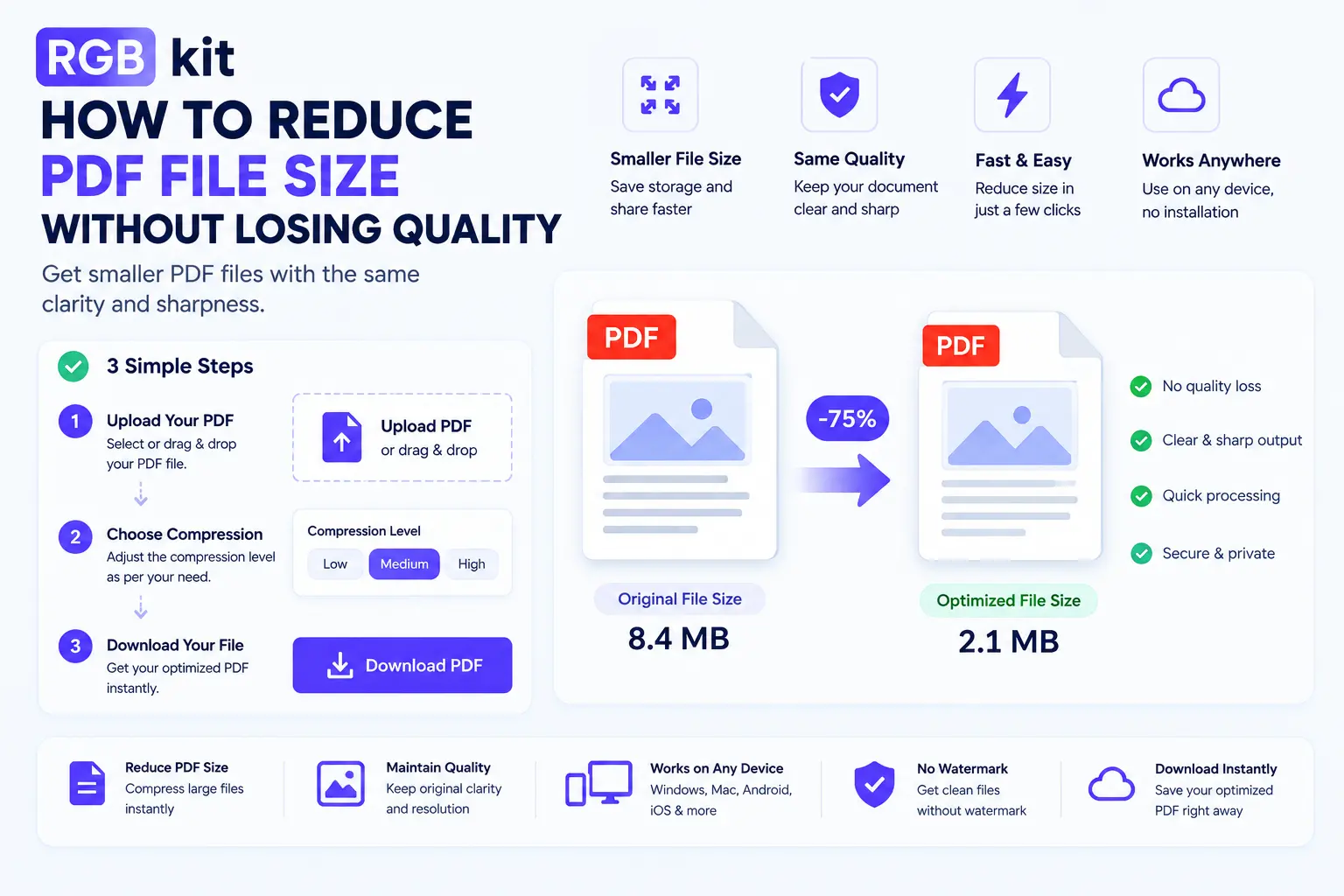
Combining multiple files inevitably produces a larger file. If the merged PDF is too large to email or upload, run it through Compress PDF to reduce the file size without visible quality loss.
Name the output file descriptively
After downloading the merged PDF, rename it immediately. merged.pdf tells you nothing in six months. johnson-property-closing-package-april-2026.pdf tells you everything.
What to Do Before and After Merging
Merging is often one step in a larger workflow. Here’s what typically happens before and after.
Before merging
|
Task |
Tool |
Why |
|---|---|---|
|
Remove unnecessary pages from a file |
No point merging pages you don’t need |
|
|
Fix page orientation |
Sideways pages should be fixed before they become part of the merged document |
|
|
Reorder pages within a file |
Get each file’s internal order right before combining |
|
|
Convert images to PDF |
Photos or scans need to be PDFs before they can be merged |
|
|
Convert Word docs to PDF |
Word files need to be PDFs before merging |
|
|
Unlock password-protected files |
Protected files can’t be merged until unlocked |
After merging
|
Task |
Tool |
Why |
|---|---|---|
|
Add page numbers |
Create continuous numbering across the combined document |
|
|
Compress the file |
Reduce the merged file’s size for sharing |
|
|
Add a watermark |
Apply “DRAFT” or “CONFIDENTIAL” across every page |
|
|
Lock the document |
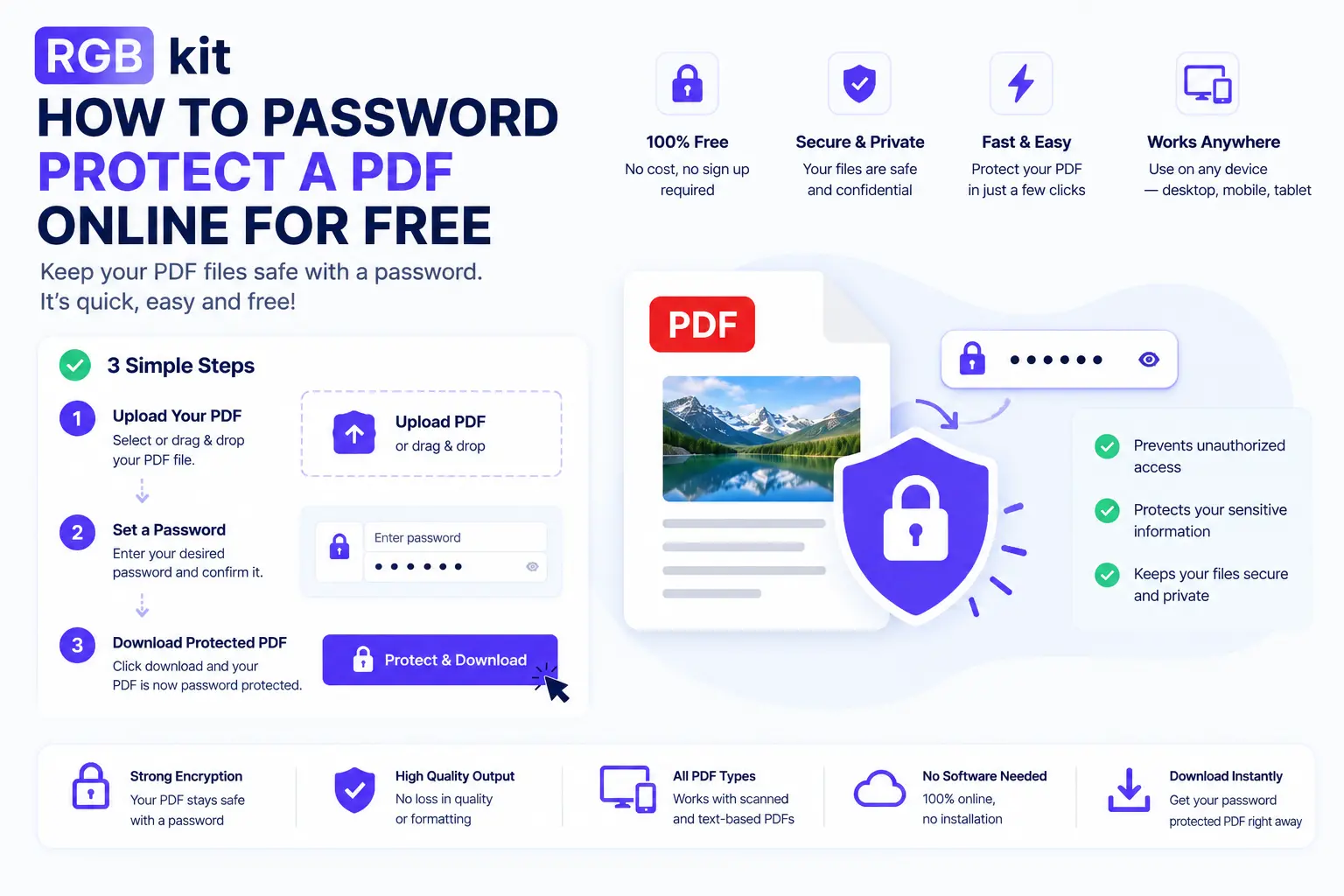
Password-protect the final package |
|
|
Sign the document |
Add your signature to the completed document |
Merge PDF vs. Other Tools — When to Use What
Merge vs. Rearrange Pages
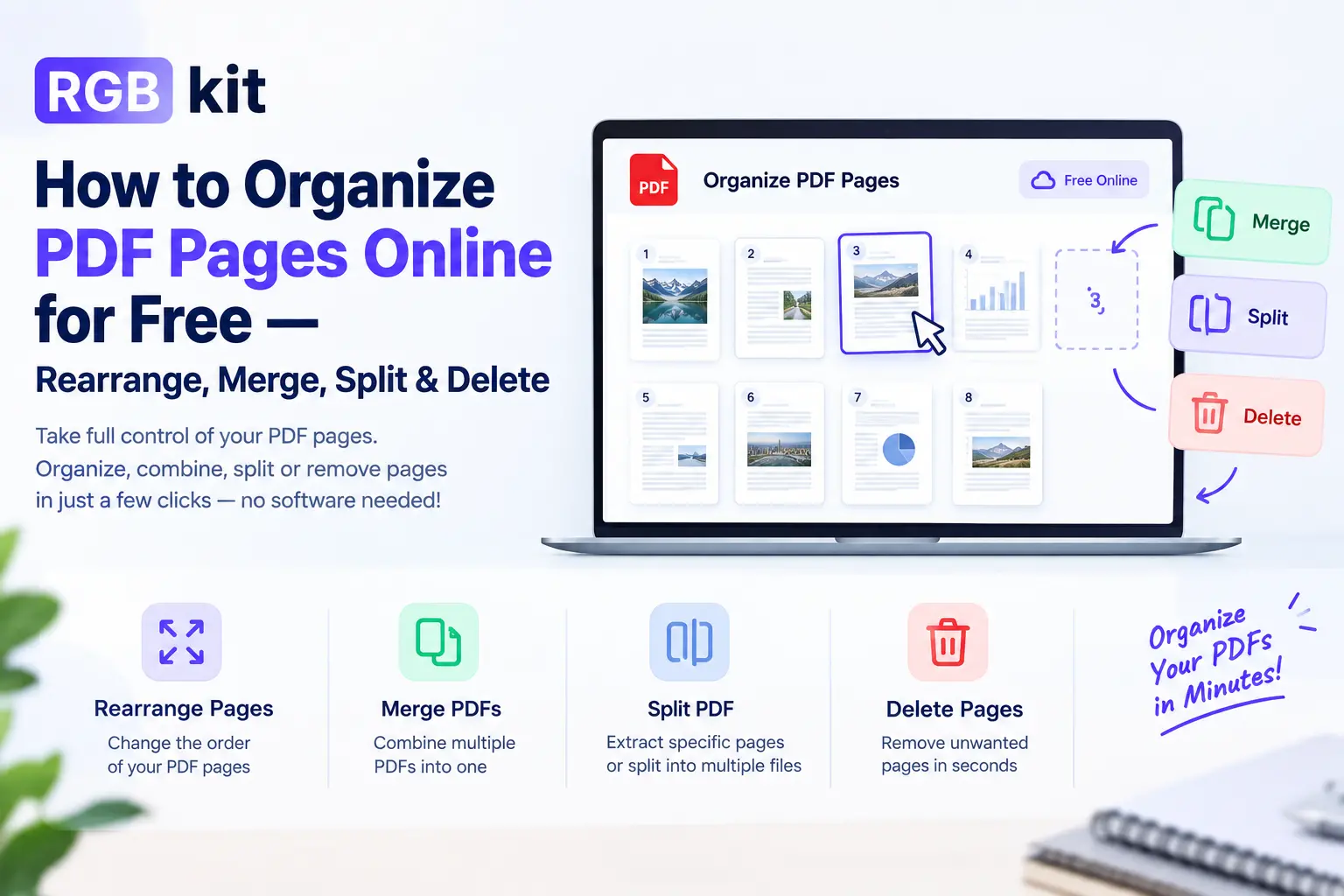
Rearrange Pages changes the page order within a single PDF. Merge combines multiple separate PDFs into one.
Use Rearrange when: you have one file and the pages are in the wrong order. Use Merge when: you have multiple files that need to become one.
Merge vs. Image to PDF
Image to PDF converts image files (JPG, PNG, etc.) into a PDF. Merge combines existing PDF files.
Use Image to PDF when: your source files are images, not PDFs. Use Merge when: your source files are already PDFs.
If you have a mix — some PDFs and some images — convert the images to PDF first, then merge everything together.
Merge vs. Split
They’re opposites. Split PDF breaks one file into many. Merge combines many files into one.
Use Split when: you need to divide a document into parts. Use Merge when: you need to combine parts into a document.
And yes, you can split a file, work on the parts individually, and then merge them back together.
Merge vs. Insert Pages
Some PDF editors let you insert pages from one PDF into another at a specific location. This is more precise than merging — which appends files end to end. If you need to insert pages into the middle of a document rather than appending them at the end, merge all the files first, then use Rearrange Pages to move the inserted pages to the correct position.
Tips for Merging PDFs
-
Convert non-PDF files first. You can only merge PDFs with PDFs. If you have Word documents, images, or other formats, convert them to PDF first using Doc to PDF or Image to PDF.
-
Remove blank or unnecessary pages before merging. Trimming each file down to only the pages you need before combining produces a cleaner result than merging everything and deleting pages afterward.
-
Check orientation before merging. A landscape page in the middle of a portrait document is jarring. Rotate any misoriented pages before they become part of the merged file.
-
Use a consistent naming convention for source files. If you name your files
01-cover-letter.pdf,02-resume.pdf,03-portfolio.pdf, they’ll sort in the correct order when you select them from a folder — saving you from rearranging inside the tool. -
Preview the merged file before sending. Scroll through the entire merged document to confirm the order is correct, no pages are missing, and everything looks as expected. A five-second check prevents embarrassing mistakes.
-
Keep the original files. After merging, don’t delete the source PDFs. You may need to re-merge in a different order, replace one component, or use individual files for a different purpose later.
Frequently Asked Questions
How do I merge PDFs for free?
Go to RGBKit’s Merge PDF tool, upload your files, arrange them in order, and download the combined PDF. Free, no signup, no software.
How many PDFs can I merge at once?
There’s no hard limit on the number of files. Upload as many as you need — two files or twenty — and combine them into a single document.
Will merging affect the quality of my PDFs?
No. Merging is a structural operation that combines files without altering their contents. Every page in the merged file is identical in quality to the original. Text, images, fonts, and formatting are fully preserved.
Can I choose the order of the files?
Yes. After uploading, drag the files into whatever sequence you want. The final PDF follows the order you set.
Can I merge PDFs on my phone?
Yes. The tool runs in any mobile browser — iPhone, Android, or tablet. Upload files, arrange the order, merge, and download directly on your device.
Can I merge a PDF with a Word document?
Not directly — both files need to be PDFs. Convert the Word document to PDF first using Doc to PDF, then merge the two PDFs.
Can I merge PDFs with different page sizes?
Yes. Files with different page dimensions (letter, A4, legal, landscape, portrait) can be merged into one document. Each page retains its original size.
Will the merged PDF have continuous page numbers?
Not automatically — each source file retains its own page numbering (or lack thereof). After merging, use Add Page Numbers to apply continuous numbering across the entire document.
Can I merge password-protected PDFs?
You’ll need to unlock them first. Use RGBKit’s Unlock PDF tool to remove the password (you’ll need to know it), then merge the unlocked files.
Can I undo a merge?
There’s no “unmerge” button, but you can use Split PDF to break the merged file back into separate documents by specifying page ranges.
Is there a file size limit?
The tool handles standard PDF files. Merging many large files will produce a large output — if the result is too big to email or upload, use Compress PDF to reduce the file size.
Can I merge the same file with itself?
Yes. If you need to duplicate a document’s pages (for example, printing two copies of a form on sequential pages), upload the same file twice and merge.
The Complete Workflow: Assemble, Merge, Finish
For documents that require assembly from multiple sources, the full workflow typically looks like this:
-
Gather all source files — PDFs, Word documents, images, scans
-
Convert non-PDF files to PDF using Doc to PDF or Image to PDF
-
Clean up each file — remove unnecessary pages, fix orientation, check content
-
Merge everything into one document using Merge PDF
-
Add page numbers using Add Page Numbers
-
Compress the final file using Compress PDF if it’s too large
-
Lock the document with a password using Lock PDF if it contains sensitive content
-
Send, upload, or archive the finished document
This is how professionals assemble legal filings, client packages, application submissions, and comprehensive reports — from scattered source materials to one polished, deliverable PDF.
Final Thoughts
Separate files are a problem. Every additional attachment is another thing to name, another thing to track, another thing the recipient might not open, another thing that can arrive out of order. Merging eliminates all of that. One file. One download. One document that tells the complete story from the first page to the last.
RGBKit’s Merge PDF tool makes it effortless. Upload your files, drag them into order, download the combined result. No software, no signup, no limits on how many files you combine. The quality of every page is preserved exactly as it was in the original.
The pieces are scattered. Put them together.
Explore more free tools: Split PDF | Compress PDF | Add Page Numbers | Rearrange Pages | Lock PDF