You find the perfect article. A how-to guide you’ll need next week. A product comparison you want to share with your team. A receipt or confirmation page you need for your records.
Then the page disappears. The website redesigns. The link breaks. The content gets paywalled. The information you needed is gone.
This happens more often than most people realize. Studies suggest that over 25% of web links break within two years. Academic research, news articles, pricing pages, government resources — none of it is guaranteed to stay online.
The simplest insurance policy? Save the webpage as a PDF.
RGBKit’s HTML to PDF tool converts any URL into a downloadable PDF file — instantly, for free, and without creating an account. Paste a link, click convert, and download the result.
This guide covers how to use it, when saving a webpage as PDF makes sense, and how it compares to other methods.
Why Save a Webpage as a PDF?
A PDF is a frozen snapshot of a webpage at a specific moment in time. Once downloaded, the content can’t be edited by the original publisher, taken down, or hidden behind a paywall.
Here’s why that matters.
Content disappears
Websites get shut down, pages get deleted, and articles get archived behind paywalls. If you didn’t save it, you lost it. A PDF preserves the content permanently on your device.
Links break
URL structures change when websites migrate, redesign, or restructure. Bookmarks stop working. Shared links lead to 404 pages. A PDF doesn’t depend on the original URL staying active.
Offline access
Traveling without internet? Working in a location with unreliable connectivity? A PDF is accessible anywhere, anytime — no network connection required.
Consistent formatting
When you print a webpage from a browser, formatting often breaks — navigation bars, ads, cookie banners, and sidebars all get included. A purpose-built web-to-PDF converter captures the content cleanly.
Easy sharing
Sending someone a link assumes they can access it. Firewalls, regional restrictions, login walls, and broken URLs can all prevent access. A PDF is a self-contained file that anyone can open.
How to Download a PDF from a Link Using RGBKit
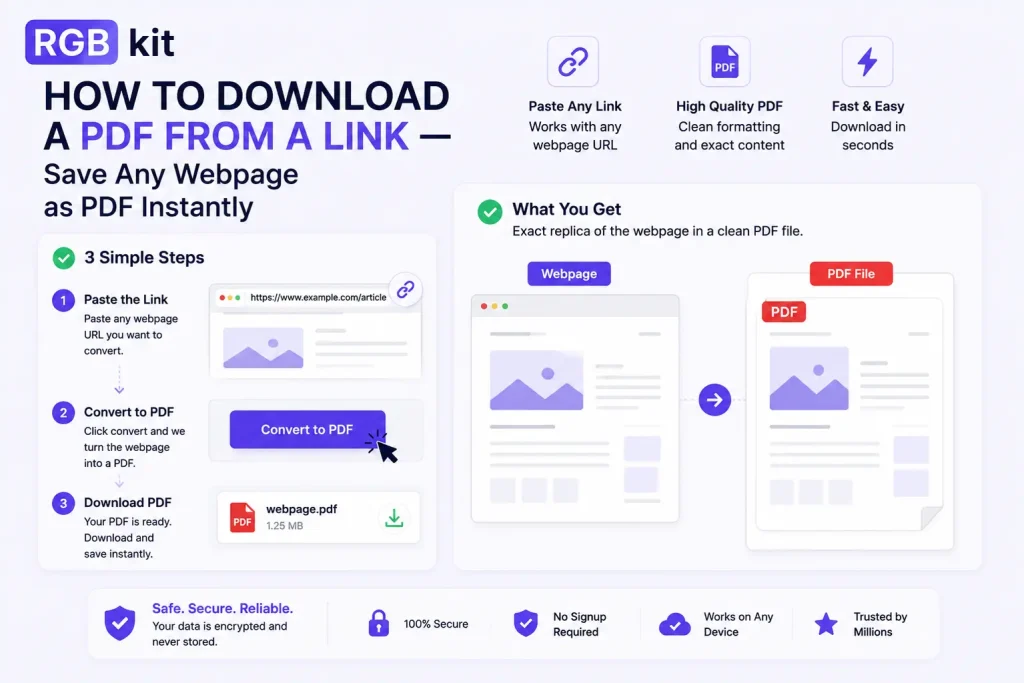
Converting a webpage to PDF takes three steps.
Step 1: Copy the URL
Open the webpage you want to save and copy the full URL from your browser’s address bar.
For example: https://www.yahoo.com/
Step 2: Paste and convert
Go to RGBKit’s HTML to PDF tool and paste the URL into the input field. Click the convert button.
The tool processes the page — including text, images, layout, and styling — and generates a PDF.
Step 3: Download the PDF
Once conversion is complete, you’ll receive a download link to your PDF file. Click it to save the file to your device.
That’s it. No software installation, no account creation, no watermarks.
What Types of Pages Can You Convert?
The HTML to PDF converter works with virtually any publicly accessible webpage. Common examples include:
|
Content Type |
Example Use Case |
|---|---|
|
News articles |
Save breaking news or investigative reports before they get paywalled |
|
Blog posts |
Archive tutorials, guides, and how-to content for offline reference |
|
Product pages |
Capture pricing, specs, and descriptions before they change |
|
Receipts and confirmations |
Save online order confirmations, booking details, or transaction records |
|
Government pages |
Download forms, policy documents, or public notices |
|
Research and reports |
Preserve academic papers, whitepapers, and industry research |
|
Job listings |
Save job descriptions before applications close and postings are removed |
|
Legal and compliance pages |
Archive terms of service, privacy policies, or regulatory guidance |
|
Real estate listings |
Capture property details, photos, and pricing before listings expire |
|
Course material |
Save lecture notes, reading lists, and educational resources |
If you can open it in a browser, you can convert it to a PDF.
RGBKit vs. Other Methods for Saving Webpages as PDF
There are several ways to save a webpage as a PDF. Here’s how they compare.
Method 1: Browser “Print to PDF” (Ctrl+P / Cmd+P)
Every modern browser lets you “print” a page and select “Save as PDF” as the destination.
Pros:
-
Built into every browser
-
No tool or extension required
Drawbacks:
-
Includes navigation bars, ads, cookie banners, and footers
-
Often breaks the page layout
-
Headers and footers get added automatically
-
Background colors and images are sometimes stripped
-
Multi-column layouts frequently collapse
Verdict: Works in a pinch, but the output is often messy and unprofessional.
Method 2: Browser extensions
Extensions like “Web to PDF” or “Save as PDF” add a one-click button to your browser toolbar.
Pros:
-
Convenient for frequent use
Drawbacks:
-
Requires installation and browser permissions
-
Extension quality varies widely — many are ad-supported or abandoned
-
Only works in one browser
-
Potential privacy concerns with data access
Verdict: Useful if you convert pages regularly, but introduces dependency and privacy trade-offs.
Method 3: Screenshot tools
Tools like full-page screenshot capture the visual appearance of a page.
Pros:
-
Captures exactly what you see
Drawbacks:
-
Output is an image, not a PDF — text is not selectable or searchable
-
Links are not clickable
-
File size is often larger than a PDF
-
Not suitable for multi-page content
Verdict: Good for visual reference, but poor for anything involving text.
Method 4: Online URL-to-PDF converter (RGBKit)
Paste a link, get a clean PDF.
Pros:
-
No installation required
-
Works on any device with a browser
-
Captures full page content with proper formatting
-
Text remains selectable and searchable
-
Links stay clickable in the output
-
Free, no signup, no watermarks
Drawbacks:
-
Requires internet access to perform the conversion
-
Cannot access pages behind logins or paywalls
Verdict: The best balance of quality, convenience, and accessibility for most users.
Real-World Scenarios
Students and researchers
You’re writing a paper and found three critical articles online. By the time you need to cite them, one has been taken down and another moved behind a paywall. Converting research sources to PDF as you find them prevents this.
Freelancers and consultants
A client shared a brief on their website. Two weeks later, they updated the page. You now have no record of the original requirements. Saving the brief as a PDF at the start creates an immutable reference document.
Legal and compliance professionals
Terms of service, regulatory notices, and policy pages change without warning. Archiving them as dated PDFs creates an evidence trail for compliance audits.
Job seekers
You’ve applied to twenty positions over the past month. Half the listings are already gone when you need to prepare for interviews. Saving job postings as PDFs preserves every detail — responsibilities, qualifications, salary ranges, and company information.
Small business owners
Your supplier’s product page listed a price of $50 per unit last week. Today it says $65. Without a saved PDF, you have no proof of the original pricing. A timestamped PDF serves as documentation.
Journalists and content creators
Online sources change, get corrected, or get deleted. Archiving source material as PDFs ensures you can always reference the original content, even if the live page is later modified.
Tips for Better Webpage-to-PDF Conversions
-
Wait for the page to fully load. If the page uses lazy loading for images or content, scroll to the bottom before copying the URL to ensure everything is captured.
-
Use the direct article URL. Avoid converting homepages with dynamic content (news feeds, carousels) unless you specifically need a snapshot of that moment.
-
Name your files descriptively. After downloading, rename the PDF with the source, date, and topic — for example,
rediff-homepage-2026-04-08.pdf— so you can find it later. -
Organize by project or topic. Create folders for different research projects, clients, or categories to avoid a cluttered downloads folder.
-
Combine multiple PDFs if needed. If you’re archiving several related pages, use RGBKit’s Merge PDF tool to combine them into a single document.
-
Secure sensitive content. If the saved PDF contains confidential information, use RGBKit’s Lock PDF tool to add password protection.
What to Do After Downloading Your PDF
Once you’ve saved a webpage as a PDF, you can use RGBKit’s full suite of PDF tools to work with the file further:
-
Edit PDF — add text, images, highlights, signatures, or shapes to the downloaded PDF
-
Merge PDF — combine multiple saved pages into one document
-
Split PDF — extract specific pages from a long conversion
-
Compress PDF — reduce file size for easier storage and sharing
-
Rotate PDF — fix page orientation if the conversion produced rotated pages
-
Lock PDF — password-protect sensitive documents
-
Watermark PDF — add a “Confidential” or “Archive” watermark for organizational purposes
-
Add Page Numbers — insert page numbers for easier navigation in long documents
All tools are free, browser-based, and require no account.
Frequently Asked Questions
How do I download a PDF from a website link?
Go to RGBKit’s HTML to PDF tool, paste the URL of the webpage you want to save, click convert, and download the resulting PDF file. The entire process takes seconds.
Is it free to convert a URL to PDF?
Yes. RGBKit’s HTML to PDF converter is completely free — no signup, no usage limits on basic conversion, and no watermarks on the output.
Can I convert any webpage to a PDF?
You can convert any publicly accessible webpage. Pages that require a login, are behind paywalls, or block automated access cannot be converted.
Will the PDF look exactly like the webpage?
The converter captures the page’s text, images, and styling as faithfully as possible. Minor layout differences may occur with highly dynamic or JavaScript-heavy pages, but the content and structure are preserved.
Can I save the PDF to my phone?
Yes. The tool works in any mobile browser. After conversion, tap the download link to save the PDF to your phone’s storage or cloud drive.
How is this different from taking a screenshot?
A screenshot produces an image file where text cannot be selected, searched, or copied. A PDF preserves selectable text, clickable links, and proper document structure — and handles multi-page content that a single screenshot cannot.
Can I convert multiple pages into one PDF?
Convert each page to a separate PDF, then use the Merge PDF tool to combine them into a single document.
Is my data safe?
Files are processed in the browser and on secure servers. RGBKit does not store your converted PDFs permanently — files are automatically cleaned up after processing.
Final Thoughts
The internet is not permanent. Pages get deleted, links break, content changes, and paywalls go up. If a webpage contains information you need — for work, research, legal documentation, or personal reference — the smartest thing you can do is save it as a PDF while it’s still available.
RGBKit’s HTML to PDF tool makes this effortless. Paste a URL, convert, download. No software, no signup, no cost.
Stop bookmarking. Start saving.
Explore more free tools: Edit PDF | Merge PDF files | Lock your PDFs | Split PDF pages | Compress PDF