A client sends you a brochure as a PDF. You need the product photos from it — not the text, not the layout, just the images. Your options? Screenshot each one and crop manually. Or try to copy-paste them out, only to get blurry, low-resolution results.
Neither works well. Screenshots lose quality. Copy-paste often fails entirely. And if the PDF has 20 or 30 images, doing it manually is a waste of time.
RGBKit’s Extract Images from PDF tool pulls every image from a PDF in a single step — at the original embedded resolution, for free, with no account required.
Why You’d Need to Extract Images from a PDF
PDFs lock everything into a fixed layout. That’s great for preserving documents, but it makes retrieving individual elements — especially images — surprisingly difficult. Here are the most common reasons people need to do it.
Reusing photos and graphics
A PDF contains product shots, team photos, or event images that you need for a presentation, social media post, or another document. Extracting them gives you the original files without recreating anything.
Recovering design assets
A designer delivered the final brochure as a PDF, but the original source files are lost. The logos, icons, and illustrations embedded in the PDF may be the only copies that still exist.
Repurposing content
You’re turning a PDF report into a blog post, slide deck, or newsletter. Instead of recreating every chart and diagram from scratch, extract them directly.
Archiving and organizing
A scanned photo album was saved as a PDF years ago. Extracting the images lets you organize them into proper folders, tag them, or upload them to a photo service.
Legal and compliance documentation
You need to isolate a specific image — a signature, a stamp, an exhibit photo — from a legal document for use in another filing.
How to Extract Images from a PDF — Step by Step
-
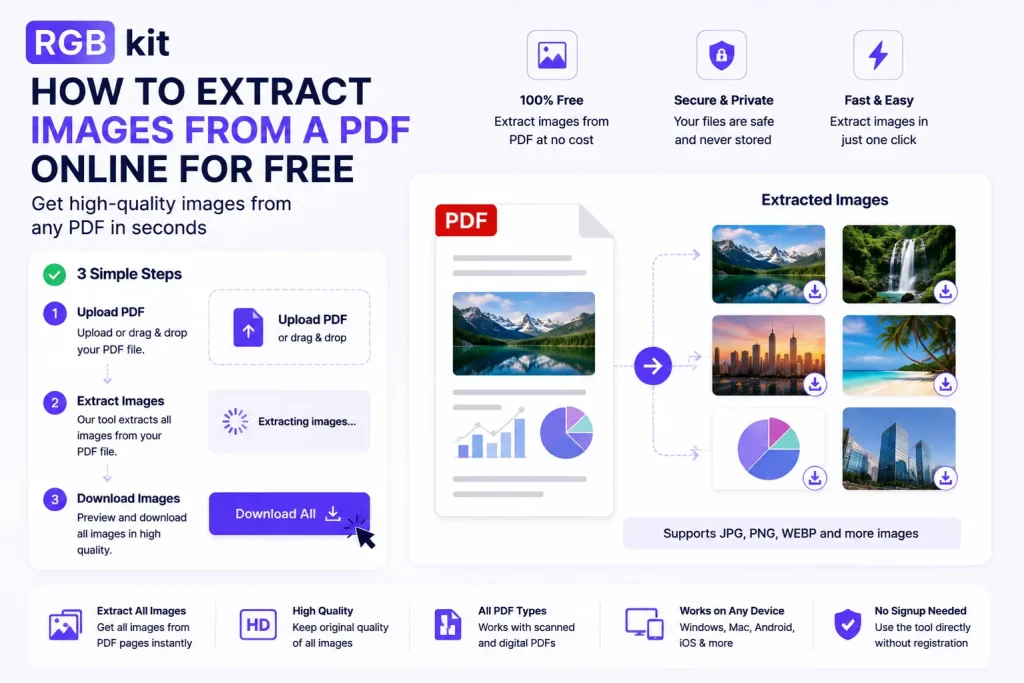
Upload your PDF — drag and drop or click to select the file
-
Extract — the tool scans the PDF and pulls out every embedded image
-
Download — save the extracted images to your device
The images are extracted at their original embedded resolution — the same quality at which they were placed into the PDF.
What Gets Extracted?
The tool pulls out every image embedded in the PDF file. This includes:
|
Image Type |
Examples |
|---|---|
|
Photographs |
Product shots, headshots, event photos, stock images |
|
Logos and icons |
Brand logos, app icons, favicons |
|
Charts and graphs |
Bar charts, pie charts, line graphs, infographics |
|
Illustrations |
Hand-drawn art, vector graphics rendered as images, diagrams |
|
Scanned content |
Scanned pages, receipts, handwritten notes saved as images |
|
Screenshots |
UI screenshots, software demos, web page captures |
If it’s an image that was placed into the PDF, the tool will find it and extract it.
Extracting Images vs. Other Methods
|
Method |
Quality |
Speed |
Handles Multiple Images |
|---|---|---|---|
|
Screenshot + crop |
Low — screen resolution only |
Slow |
No — one at a time |
|
Copy-paste from PDF viewer |
Inconsistent — often fails or loses quality |
Slow |
No |
|
“Save As” image from PDF viewer |
Limited — most viewers don’t offer this |
N/A |
No |
|
Online extraction tool (RGBKit) |
Original embedded resolution |
Fast — all images at once |
Yes — every image in one step |
The extraction tool is the only method that gives you original quality and handles every image in the file at once.
Real-World Use Cases
Marketing teams
Extract product photos, lifestyle images, and branded graphics from PDF catalogs, media kits, and brochures to reuse in social media posts, email campaigns, and website updates.
Bloggers and content creators
Pull charts, diagrams, and infographics from research PDFs and whitepapers to embed in articles and blog posts — with proper attribution.
Students and researchers
Extract figures, graphs, and data visualizations from academic papers for presentations, study notes, or thesis documentation.
Graphic designers
Recover logos, illustrations, and assets from old PDF files when the original design files have been lost or are no longer available.
Real estate professionals
Extract property photos from listing PDFs to use in marketing materials, social media posts, or MLS uploads.
Administrative and office staff
Pull signature images, company stamps, or letterhead graphics from archived PDF documents for use in new correspondence.
Tips for Better Results
-
Use text-based PDFs when possible. Images embedded in properly created PDFs (exported from design or office software) extract at the highest quality. Scanned PDFs may produce lower-resolution images since the entire page is one image.
-
Check the resolution. Extracted images will match the resolution at which they were embedded. If the original PDF used low-resolution images, the extracted versions will be low-resolution too.
-
Rename and organize immediately. After extraction, rename the files descriptively (e.g.,
product-hero-shot.jpginstead ofimage_003.jpg) so you can find them later. -
Combine with other tools. After extracting images, use RGBKit’s image tools to resize, compress, convert to WEBP, or remove backgrounds as needed.
Frequently Asked Questions
Does extracting images affect the original PDF?
No. The original PDF remains completely unchanged. The tool creates copies of the embedded images — it doesn’t modify the source file.
What image formats are the extracted files?
Images are extracted in their original embedded format — typically JPG or PNG, depending on how the PDF was created.
Can I extract images from a scanned PDF?
If the scanned PDF contains individual image objects, yes. However, a fully scanned document (where each page is a single image) will extract each page as one large image rather than individual photos within the page.
Is there a limit on how many images I can extract?
The tool processes the entire PDF and extracts all embedded images in one step.
Is the tool free?
Yes. Completely free, no signup required, no watermarks added to the extracted images.
Can I do this on my phone?
Yes. The tool works in any mobile browser. Upload your PDF, extract, and download the images directly on your device.
Final Thoughts
Images trapped inside a PDF don’t have to stay there. Whether you need a single logo or every photo from a 100-page catalog, extracting them should take seconds — not hours of screenshotting and cropping.
RGBKit’s Extract Images from PDF tool does it in one step. Upload, extract, download. Original quality, every image, no cost.
Explore more free tools: Edit PDF | Compress PDF | Merge PDF | PDF to JPG | Remove Background