Someone merged a dozen documents into one massive PDF. Now you need just the contract on pages 14–18. Or a bank sends you a 60-page annual statement and you only want the December summary. Or you combined several files last week and now need them separated again.
PDFs are easy to combine. Pulling them apart? Not so obvious.
Most PDF viewers let you scroll through pages, but none of them let you split the file into pieces. You can’t just drag pages out. There’s no “unmerge” button. And printing specific pages to a new PDF often loses bookmarks, links, and formatting.
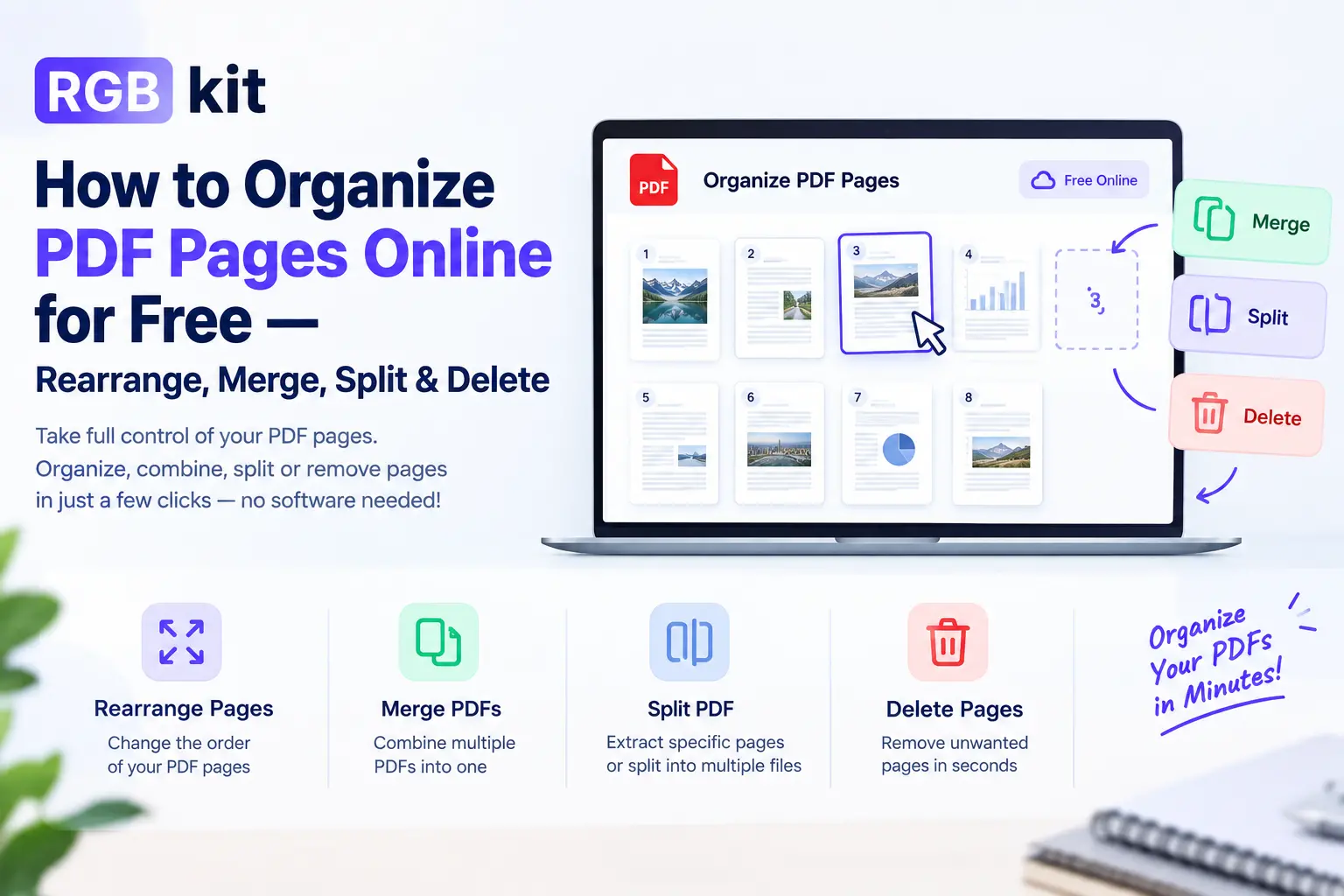
RGBKit’s Split PDF tool separates any PDF into multiple files — by page range, by specific pages, or one page at a time. Free, browser-based, no account required.
This guide covers how to split a PDF, how to extract individual pages, and when each approach makes the most sense.
When You Need to Split a PDF
Splitting PDFs comes up more often than most people expect. Here are the situations that drive it.
Undoing a merge
You merged several documents into one PDF — a resume, cover letter, and references — but the recipient needs them as separate files. Splitting reverses the merge.
Extracting a section from a long document
A 200-page manual, report, or textbook contains one chapter or section you actually need. Splitting lets you pull out just those pages without carrying around the entire file.
Separating bundled statements
Banks, insurance companies, and service providers often send combined statements — 12 months in one PDF, or multiple accounts in a single file. Splitting separates them into individual documents for filing, accounting, or forwarding.
Sharing only what’s relevant
A legal document has 40 pages, but opposing counsel only needs pages 22–30. Splitting lets you share just the relevant section without exposing the rest.
Reducing file size
A 50-page PDF with high-resolution images might be too large to email. Splitting it into smaller parts makes it manageable for sharing.
Organizing scanned documents
You scanned a stack of different documents into one PDF to save time at the scanner. Now each document needs to be its own file. Splitting separates them.
How to Split a PDF — Three Methods
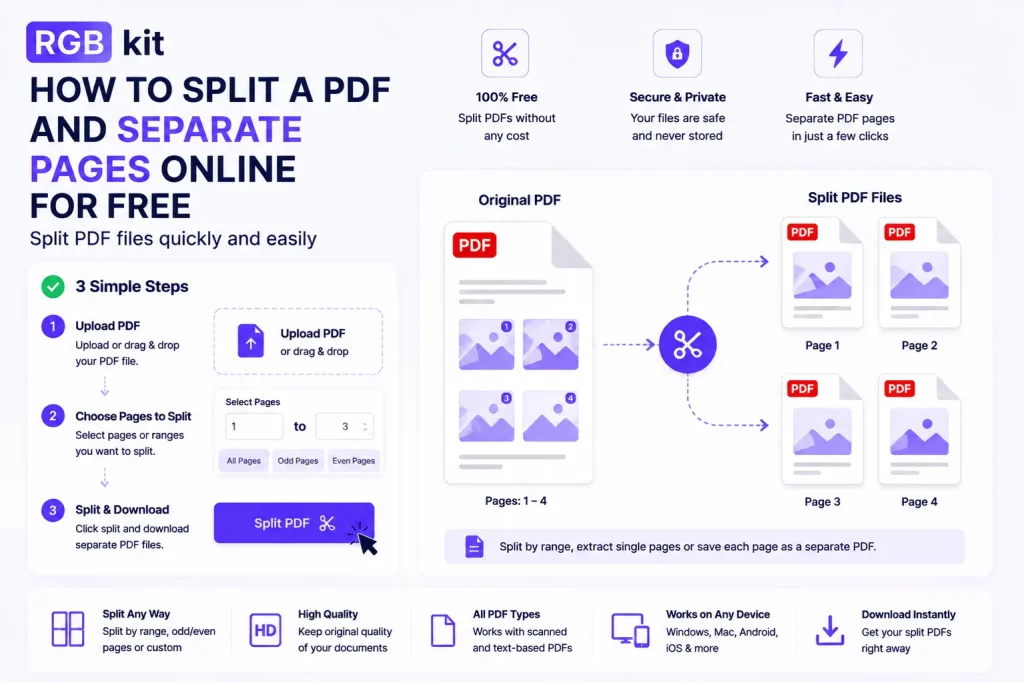
RGBKit’s Split PDF tool offers multiple ways to break apart a PDF. Choose the one that fits your situation.
Method 1: Split by page range
Extract a continuous section of pages. Specify the start and end page, and download that range as a new PDF.
Example: You have a 100-page report and need pages 25–40.
-
Go to RGBKit’s Split PDF tool
-
Upload your PDF
-
Enter the page range: 25 to 40
-
Download the extracted section
Best for: Pulling out chapters, sections, or any consecutive group of pages.
Method 2: Extract specific pages
Pick individual pages from anywhere in the document — not necessarily in sequence — and download them as a new PDF.
Example: You need pages 3, 7, 15, and 28 from a 50-page document.
-
Go to RGBKit’s Split PDF tool
-
Upload your PDF
-
Select pages 3, 7, 15, and 28
-
Download the new PDF containing only those pages
Best for: Cherry-picking specific pages from a larger document.
Method 3: Split every page into its own file
Turn a multi-page PDF into individual single-page files — one PDF per page.
Example: A 12-page document needs to become 12 separate files.
-
Go to RGBKit’s Split PDF tool
-
Upload your PDF
-
Select the option to split every page
-
Download all 12 files
Best for: When every page is a different document (scanned batch, individual receipts, separate forms).
Real-World Scenarios
Accountants and bookkeepers
A client sends a single PDF containing invoices from five different vendors. Split the file into five separate invoices for individual processing and record-keeping.
Lawyers and paralegals
A 300-page case file needs to be shared with multiple parties, each entitled to see only specific sections. Split the document by section and share only what’s relevant to each party.
Students
A professor uploads a full textbook as a PDF. You only need chapters 4 and 5 for this week’s assignment. Extract those pages instead of carrying around a 500-page file on your tablet.
HR teams
An employee’s personnel file is one PDF with everything — application, offer letter, performance reviews, tax forms. When the employee requests a copy of just their offer letter, split and extract that section.
Real estate professionals
A property package includes the listing, floor plan, inspection report, title search, and comparable sales in one PDF. Split it into individual documents for different stakeholders — the inspector gets the inspection report, the lender gets the title search.
Publishers and editors
A manuscript was submitted as a single PDF. Split it into individual chapters for distribution to different reviewers.
Split PDF vs. Extract Pages vs. Remove Pages — What’s the Difference?
RGBKit offers three tools that deal with selecting pages from a PDF. Here’s how they differ.
|
Tool |
What it does |
You get… |
|---|---|---|
|
Divides a PDF into multiple separate files |
New, smaller PDF files |
|
|
Pulls specific pages out into a new PDF |
A new PDF with just the selected pages |
|
|
Deletes specific pages from the PDF |
The original PDF minus the deleted pages |
Quick decision:
-
Want to keep certain pages → Split or Extract
-
Want to delete certain pages → Remove
-
Want to break a file into multiple files → Split
Tips for Splitting PDFs
-
Know your page numbers first. Open the PDF and note the exact pages you need before uploading. This makes the split faster and more accurate.
-
Use Extract Pages for precision. If you need a handful of non-consecutive pages (like pages 3, 11, and 27), Extract Pages is more efficient than splitting by range.
-
Merge after splitting if needed. Split a PDF into parts, then use Merge PDF to recombine specific parts in a different order.
-
Add page numbers to long documents. Before splitting, use Add Page Numbers so you (and recipients) can reference specific pages in the split files.
-
Name your files descriptively. After splitting, rename each file —
report-chapter-3.pdfis more useful thansplit-part-1.pdf. -
Check page count after splitting. Verify the output has the expected number of pages to make sure you didn’t miss or include an extra page.
Frequently Asked Questions
How do I split a PDF for free?
Go to RGBKit’s Split PDF tool, upload your PDF, choose how to split (by range, specific pages, or every page), and download the result. Completely free, no signup.
Can I undo a PDF merge?
Yes. If you previously merged several files into one PDF, upload the merged file to the Split PDF tool and extract each original document by specifying the page ranges.
Can I extract just one page from a PDF?
Yes. Upload the PDF, select the single page you need, and download it as its own file.
Will splitting affect the quality of the PDF?
No. Splitting divides the file into parts without altering the content. Text, images, and formatting remain exactly as they were in the original.
Can I split a PDF on my phone?
Yes. The tool works in any mobile browser — iPhone, Android, or tablet.
What if I don’t know the exact page numbers?
Open the PDF in any viewer first and scroll through to identify the pages you need. Note the page numbers, then use the Split tool.
Is there a file size limit?
The tool handles standard multi-page PDFs. Very large files may take a few extra seconds to process.
Can I split a password-protected PDF?
You’ll need to unlock the PDF first. Use RGBKit’s Unlock PDF tool to remove the password (you’ll need to know it), then split the unlocked file.
Final Thoughts
Merging PDFs is easy. Every tool offers it. But when you need to go the other direction — separating pages, extracting sections, undoing a merge — most people get stuck.
RGBKit’s Split PDF tool makes it straightforward. Split by range, extract specific pages, or break every page into its own file. Free, browser-based, no signup.
What went in can always come back out.
Explore more free tools: Merge PDF | Remove Pages | Organize PDF | Extract Pages | Compress PDF