You need to update a date on a contract. Fix a typo in an invoice. Add your signature to a form. Replace a logo on a one-pager.
These are small tasks — but if you’ve ever tried editing a PDF, you know they rarely feel small. Most people end up converting the PDF to Word, wrestling with broken formatting, and converting it back. Others download desktop software they’ll use once and forget.
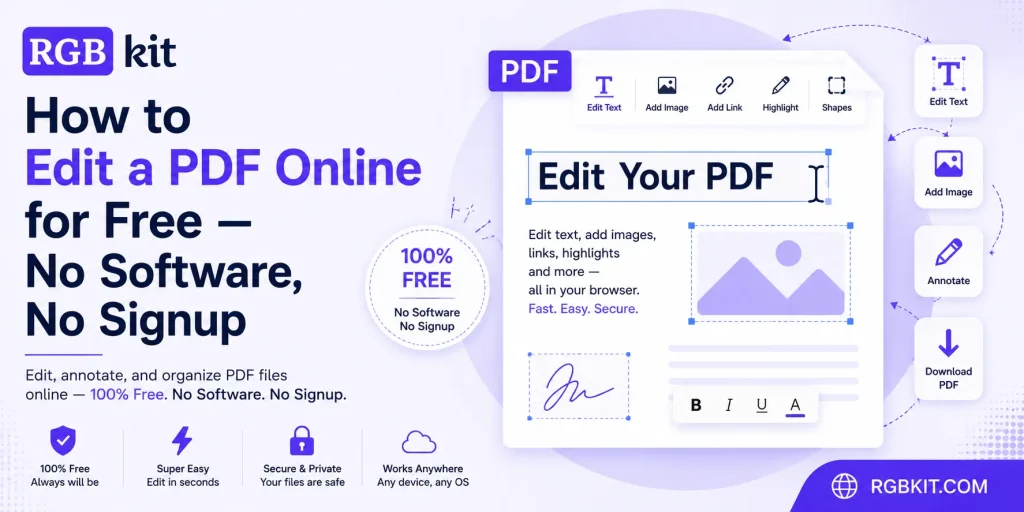
There’s a faster way. RGBKit’s Edit PDF tool lets you edit any PDF directly in your browser — for free, with no account required.
This guide walks through every feature the editor offers, when to use each one, and how to get the most out of free online PDF editing.
Why Edit a PDF Directly Instead of Converting It?
PDFs are designed to lock down formatting. That’s their entire purpose — a document that looks the same on every device, every printer, every screen.
The moment you convert a PDF to another format, you break that contract. Common problems include:
-
Font substitution — the converted file uses a different typeface
-
Layout shifts — tables, columns, and margins move out of place
-
Lost images — graphics disappear or get repositioned
-
Broken links — hyperlinks and bookmarks stop working
-
Version confusion — you now have two files representing the same document
For simple edits, conversion is overkill. Direct PDF editing preserves the original layout while letting you make precise changes.
When direct editing makes sense
-
Correcting typos or outdated information
-
Adding a signature or stamp to a form
-
Inserting an image, logo, or watermark
-
Highlighting or annotating sections for review
-
Adding shapes or callouts to draw attention
When conversion is still the better option
-
Rewriting large portions of the document
-
Restructuring tables or multi-column layouts
-
Redesigning the document from scratch
For everything else — which covers the vast majority of real-world PDF tasks — editing in place is faster and safer.
What You Can Do with RGBKit’s Free PDF Editor
The editor runs entirely in your browser. Upload a PDF, make your changes, and download the result. No watermarks, no file size limits on basic editing, and no account required.
Here’s a breakdown of every feature.
1. Add New Text Anywhere on the Page
Click Add Text in the toolbar to place a text box anywhere on your PDF. This is useful for:
-
Adding missing information to a form
-
Inserting notes, labels, or disclaimers
-
Placing a date, reference number, or footer
Once placed, you get full control over the text appearance through the Text Properties panel:
-
Font — choose from standard fonts like Helvetica, Times New Roman, and Courier
-
Size — adjust from small annotations to large headings
-
Color — pick any color to match the document’s existing palette
-
Style — apply bold, italic, or underline formatting
This means your additions can blend seamlessly with the original document rather than looking like obvious patches.
2. Edit Existing Text
The Edit Text tool lets you click directly on text that already exists in the PDF and modify it. The same formatting controls apply — font, size, color, and style.
This covers the most common PDF editing needs:
-
Fixing a misspelled name or address
-
Updating a date, price, or version number
-
Changing a clause in a contract or agreement
-
Correcting contact information
Because you’re editing within the PDF layer itself, the surrounding layout remains untouched. No reflow, no broken tables, no shifted images.
3. Insert Images
The Image tool lets you upload and place images directly into the PDF. Supported use cases include:
-
Adding a company logo to a document
-
Inserting a product photo into a brochure
-
Placing a scanned signature image
-
Adding charts or diagrams to a report
You can position and resize the image after placing it, so it fits naturally within the existing layout.
4. Highlight Text with Multiple Colors
The Highlight tool provides six distinct colors:
-
Yellow — standard emphasis
-
Green — approved or confirmed sections
-
Blue — informational callouts
-
Pink — urgent or critical items
-
Orange — items needing review
-
Purple — custom categorization
Color-coded highlighting is especially valuable for:
-
Document review workflows — each reviewer uses a different color
-
Legal review — marking clauses by category (obligations, deadlines, liabilities)
-
Study and research — organizing information by theme
-
Feedback cycles — distinguishing between types of comments
5. Sign Documents Electronically
The Sign tool lets you add your signature directly to the PDF. This eliminates the print-sign-scan cycle that wastes time and paper.
Common scenarios:
-
Signing contracts, NDAs, or agreements
-
Approving purchase orders or invoices
-
Authorizing internal documents
-
Completing government or application forms
For individuals and small businesses that don’t need a full e-signature platform, this is a practical, zero-cost solution.
6. Draw Shapes and Annotations
The Shapes tool offers five shape types, each useful for different annotation purposes:
|
Shape |
Best For |
|---|---|
|
Rectangle |
Highlighting sections, creating borders, boxing content |
|
Circle |
Drawing attention to specific items or data points |
|
Line |
Connecting elements, underlining, separating sections |
|
Arrow |
Pointing to specific content, showing flow or direction |
Each shape comes with customizable properties:
-
Stroke color — the outline color of the shape
-
Fill color — the interior color (or transparent with “No fill”)
-
Stroke width — thin lines for subtle annotations, thick lines for emphasis
This makes the editor useful beyond simple text changes. You can annotate architectural plans, mark up design proofs, circle errors in financial statements, or add directional callouts to instructional documents.
Step-by-Step: How to Edit a PDF Online for Free
-
Go to RGBKit’s Edit PDF tool
-
Upload your PDF — drag and drop or click to select the file from your device
-
Select a tool — choose from Add Text, Edit Text, Image, Highlight, Sign, or Shapes
-
Make your changes — click on the PDF to place or modify content
-
Adjust properties — use the right-side panel to fine-tune fonts, colors, sizes, and styles
-
Download your PDF — click the Download PDF button to save the edited file
The entire process happens in your browser. Your file is processed locally, and no account or installation is needed.
Real-World Use Cases
Freelancers and Consultants
Update proposals with client-specific details, add your signature to contracts, and insert your branding — without opening Word or InDesign.
Students and Researchers
Highlight and annotate academic papers, add notes to lecture slides, and mark up reference materials with color-coded highlights.
Small Business Owners
Edit invoices, update company documents, add logos to templates, and sign agreements — all from a browser, on any device.
HR and Operations Teams
Annotate policy documents, highlight changes in employee handbooks, add signature fields to onboarding forms, and mark up compliance documents for review.
Real Estate and Legal Professionals
Make last-minute corrections to contracts, highlight key terms and dates, add signature blocks, and annotate property documents with shapes and callouts.
Free Online PDF Editor vs. Desktop Software: How to Choose
|
Factor |
Free Online Editor (RGBKit) |
Paid Desktop Software |
|---|---|---|
|
Cost |
Free |
$12–$25/month |
|
Installation |
None — runs in browser |
Requires download and setup |
|
Account required |
No |
Yes |
|
Text editing |
Yes |
Yes |
|
Image insertion |
Yes |
Yes |
|
Highlighting |
Yes, multi-color |
Yes |
|
Signatures |
Yes |
Yes |
|
Shapes and annotations |
Yes |
Yes, with more options |
|
OCR (scanned PDFs) |
No |
Yes (paid tiers) |
|
Batch processing |
No |
Yes |
|
Best for |
Quick edits, everyday tasks |
Heavy, repeated editing workflows |
For the vast majority of PDF editing needs — fixing text, adding signatures, highlighting content, inserting images — a free online editor handles the job without the overhead of paid software.
Tips for Better PDF Editing Results
-
Work on a copy. Always keep the original PDF untouched. Edit a duplicate so you can revert if needed.
-
Match fonts carefully. When adding new text, choose a font that matches the existing document to maintain a professional appearance.
-
Use consistent highlight colors. If you’re reviewing a document with others, agree on a color scheme beforehand.
-
Keep annotations clean. Use shapes and arrows sparingly — too many callouts make a document harder to read, not easier.
-
Check the final output. After downloading, open the edited PDF and verify all changes rendered correctly before sharing.
More PDF Tools from RGBKit
RGBKit offers a complete suite of free, browser-based PDF tools beyond the editor:
-
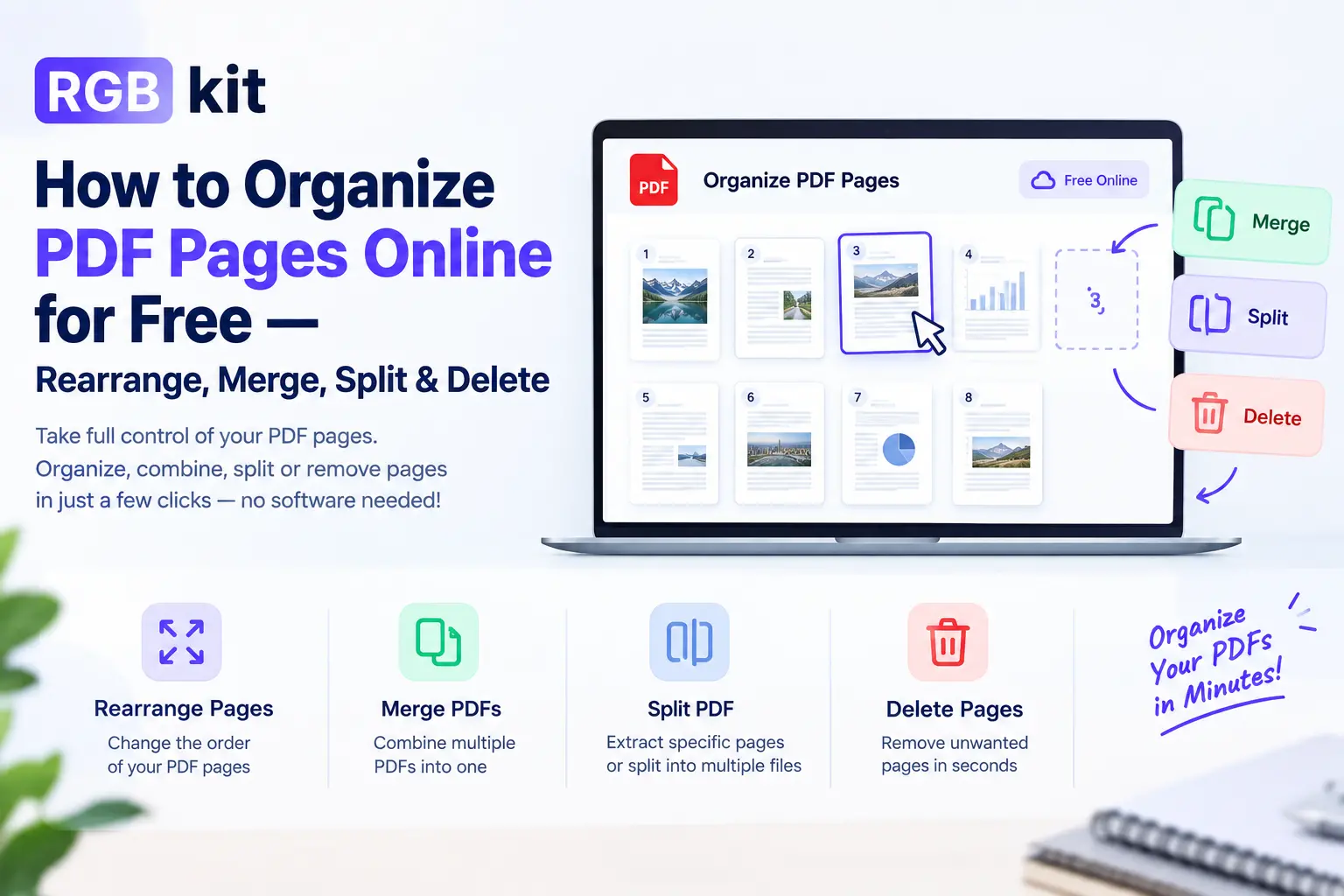
Merge PDF — combine multiple PDF files into a single document
-
Split PDF — extract specific pages into separate files
-
Rotate PDF — fix page orientation with a single click
-
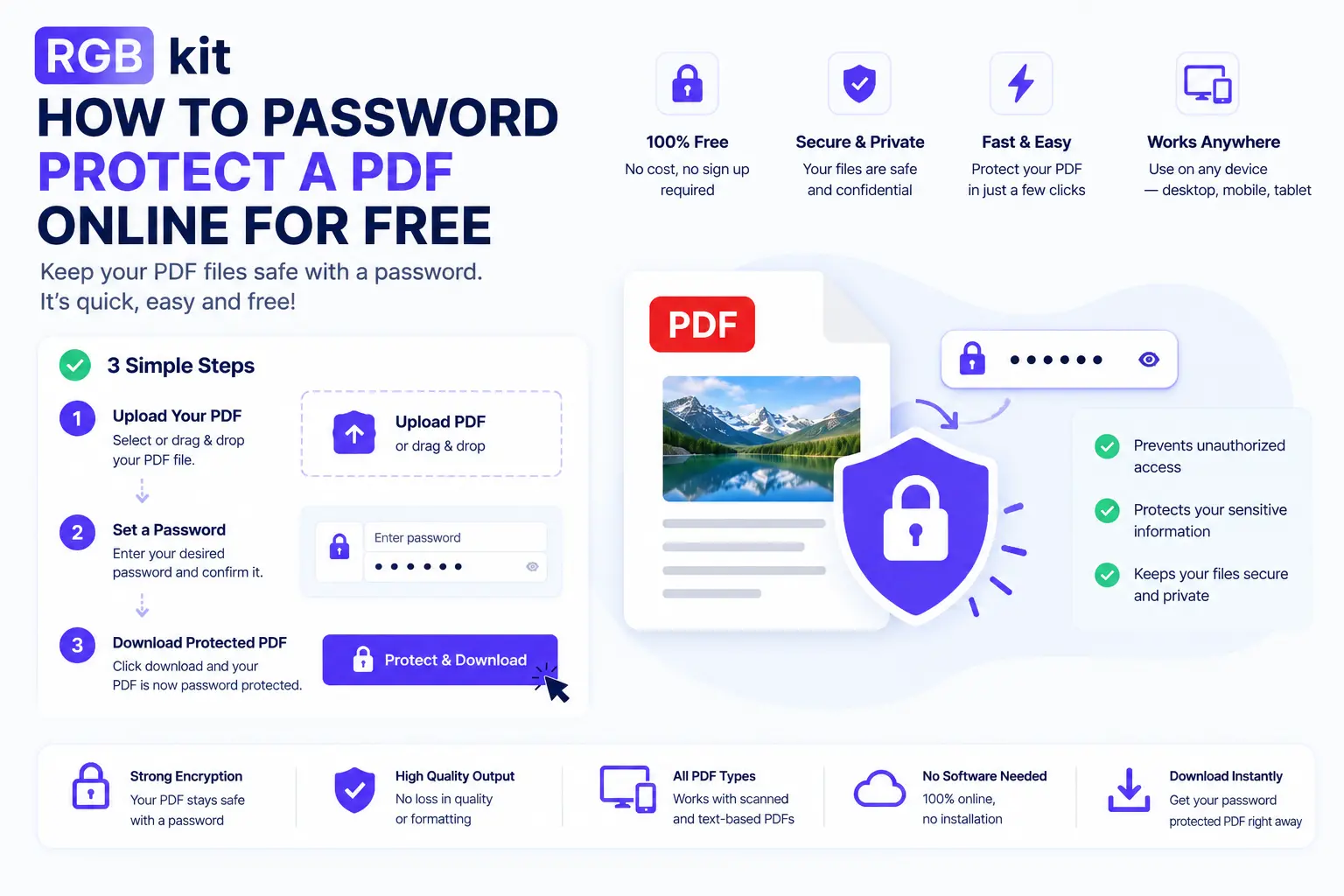
Lock PDF — password-protect sensitive documents
-
Unlock PDF — remove password protection when authorized
-
HTML to PDF — convert web pages into downloadable PDFs
All tools are free, require no signup, and work directly in your browser.
Final Thoughts
Editing a PDF shouldn’t require expensive software, format conversions, or a computer science degree. For the everyday tasks that account for 90% of PDF editing — fixing text, adding signatures, inserting images, highlighting content — a browser-based editor is all you need.
RGBKit’s Edit PDF tool gives you a full-featured editor with text controls, image insertion, multi-color highlighting, electronic signatures, and shape annotations — completely free, with no signup and no watermarks.
Open it. Upload your PDF. Make your changes. Download the result. That’s it.
Explore more free tools: Merge PDF files | Lock your PDFs | Convert HTML to PDF | Create GIFs from images