Most people know they can open a PDF. Some know they can convert one to Word. But beyond that, the average person treats PDFs like sealed envelopes — you look at what’s inside, and that’s about it.
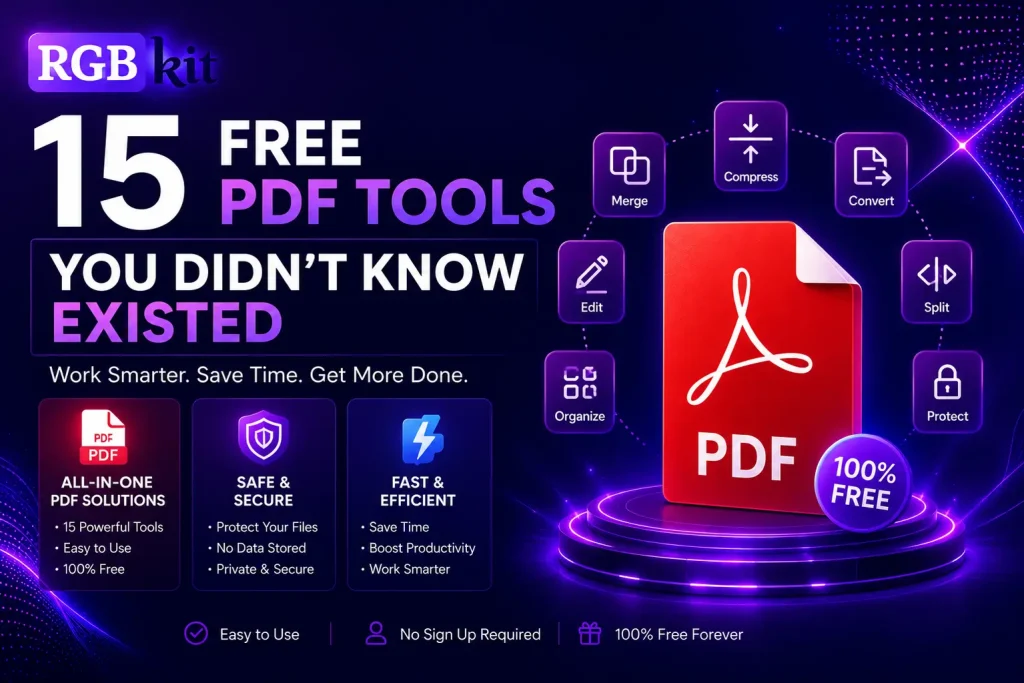
The truth is, there’s an entire world of free PDF tools that go far beyond reading and basic conversion. Tools that let you rip images out of a document, permanently erase sensitive data, scan handwritten pages into searchable text, reorder pages by dragging and dropping, and sign contracts without ever printing a single sheet of paper.
You don’t need expensive software. You don’t need a subscription. You don’t even need to create an account. These tools run entirely in your browser, they’re completely free, and most people have no idea they exist.
Here are 15 of them.
1. Extract Images from a PDF
You’re reading a report and there’s a chart you need for your own presentation. Or a product brochure has high-resolution photos you want to save individually. You could take screenshots, but that kills the quality and crops imprecisely.
What most people don’t realize is that you can pull every embedded image out of a PDF in its original resolution, as a separate downloadable file. The images come out exactly as they were placed into the document — no quality loss, no awkward cropping, no pixel degradation from screenshotting.
This is incredibly useful for designers who receive brand assets inside PDFs, marketers pulling visuals from vendor materials, and students grabbing diagrams from academic papers.
Extract Images from PDF — upload your file, and download every image embedded in the document as a separate file.
2. Redact Sensitive Information Permanently
When most people want to hide information in a PDF, they draw a black rectangle over it using a basic annotation tool. The problem? That rectangle is just sitting on top of the text. Anyone with a free PDF editor can move it, delete it, or copy the text underneath.
True redaction doesn’t just cover text — it permanently removes it from the file. The data is gone. Not hidden, not layered over, not recoverable. This is the standard that legal firms, healthcare providers, financial institutions, and government agencies rely on when sharing documents that contain Social Security numbers, medical records, salary figures, or case details.
If you’ve ever shared a PDF after simply “covering up” private data with a shape, you’ve likely exposed more than you intended. Real redaction eliminates that risk entirely.
Redact PDF — select the content you need to remove, and it’s permanently erased from the file before download.
3. Run OCR on Scanned Documents
You have a stack of scanned receipts. Or a contract someone photographed with their phone. Or old paper records that were digitized years ago as image files. The PDFs exist, but you can’t search them, copy text from them, or do anything useful beyond looking at pictures of pages.
Optical Character Recognition changes that. OCR analyzes the image of each page, identifies the letters and words, and creates a searchable, selectable text layer on top of the original image. The visual appearance stays identical, but now you can search for specific terms across hundreds of pages, copy passages into other documents, and even edit the recognized text.
This is particularly valuable for anyone dealing with legacy documents, scanned archives, tax records from paper filing systems, or immigration paperwork that was submitted as photocopies.
OCR PDF — upload a scanned PDF and get back a fully searchable version with selectable text.
4. Add Page Numbers to Any PDF
It sounds simple, and it is — but an embarrassing number of long documents circulate without page numbers. Reports, proposals, manuals, and manuscripts become significantly harder to reference and discuss when there’s no way to say “look at page 14.”
This tool lets you add page numbers to any PDF after the fact, even if the original author forgot to include them. You can choose where the numbers appear — top or bottom of the page, left, center, or right alignment — and the numbering is applied consistently across every page.
It’s one of those tools you don’t think about until you’re in a meeting trying to reference a 47-page document and everyone is scrolling aimlessly because there are no page numbers.
Add Page Numbers to PDF — choose your preferred position and style, and page numbers are added to every page automatically.
5. Watermark a PDF
Watermarking isn’t just for photographers protecting their images. It’s one of the most practical ways to control how a document is perceived and used after you send it out. A “DRAFT” watermark prevents recipients from treating a preliminary version as final. A “CONFIDENTIAL” watermark signals the sensitivity of the content. A company logo watermark reinforces branding on client-facing materials.
The key is that watermarks appear on every page without altering the underlying content. They sit as a semi-transparent layer — visible enough to communicate their message, subtle enough not to interfere with reading.
Many people don’t know that you can add text or image watermarks to an existing PDF without opening the original source file. You don’t need to go back to the original source application. You just upload the PDF, configure the watermark, and download the result.
Watermark PDF — add text or image watermarks across every page of your document.
6. Convert Any Webpage to a PDF
Web pages disappear. Articles get taken down. Pricing pages change. Terms of service get rewritten without notice. If you need a permanent, shareable, printable record of what a web page looked like at a specific point in time, converting it to a PDF is the cleanest solution.
This tool takes any URL and renders the full page — text, images, layout — as a downloadable PDF file. It’s useful for saving online receipts before your email inbox buries them, archiving research articles that might move behind a paywall, documenting competitor pricing or product pages, and preserving legal or regulatory content for compliance purposes.
Unlike browser print-to-PDF, which often breaks layouts and cuts off content, a dedicated HTML-to-PDF tool renders the page properly and produces a clean, well-formatted document.
HTML to PDF — paste any URL and download a PDF snapshot of the page.
7. Rearrange Pages Inside a PDF
Someone sent you a 30-page document where the appendix is in the middle, the executive summary is on page 12, and the cover page is somehow at the end. Or you scanned a stack of documents and the page order got scrambled. Or you merged several files but they need to be in a different sequence.
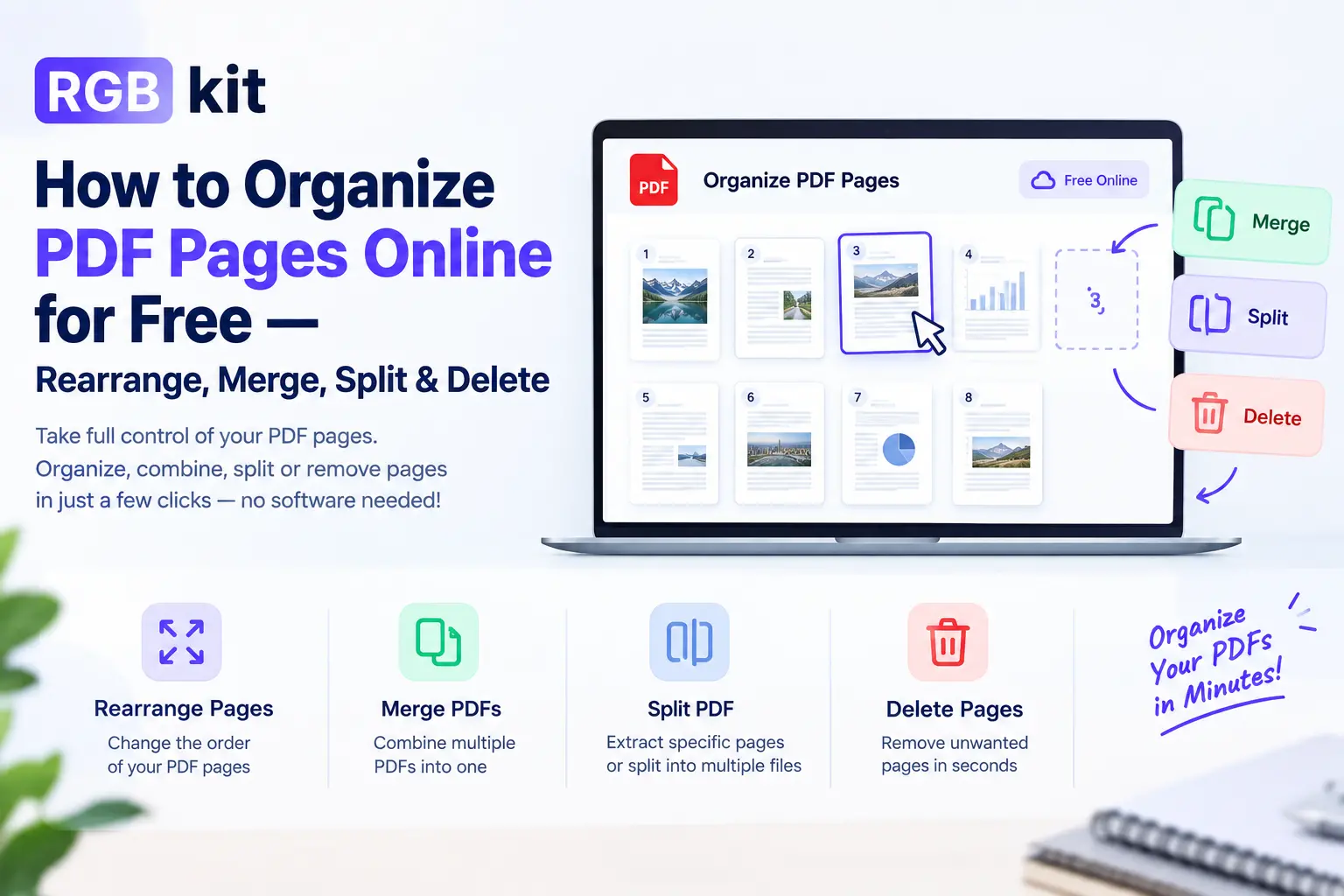
Whatever the reason, you shouldn’t have to re-create the entire document from scratch just because the pages are in the wrong order. A page rearrangement tool gives you a visual grid of every page in the PDF, and you simply drag them into the correct order. It feels like sorting cards on a table.
This is especially handy for teachers assembling exam papers from question banks, real estate agents organizing multi-document property packages, and anyone who has ever merged PDFs only to realize the order wasn’t quite right.
Rearrange PDF Pages — drag and drop pages into any order, then download the reorganized file.
8. Remove Specific Pages from a PDF
You have a 20-page bank statement but only need pages 3 through 7 for your loan application. Or a vendor sent a proposal with 15 pages of terms and conditions that you don’t need to forward to your team. Or there are blank pages scattered throughout a scanned document that serve no purpose.
Instead of re-scanning, re-exporting, or asking the sender for a trimmed version, you can simply select the pages you want to delete and download the cleaned-up file. The remaining pages stay in their original quality and order — nothing is recompressed, re-rendered, or degraded.
This is one of those tools that saves five minutes per use, but over the course of a year, those five-minute savings add up to hours of time you’d otherwise spend on workarounds.
Remove PDF Pages — select the pages you want to delete, and download the trimmed document.
9. Compress a PDF Without Destroying Quality
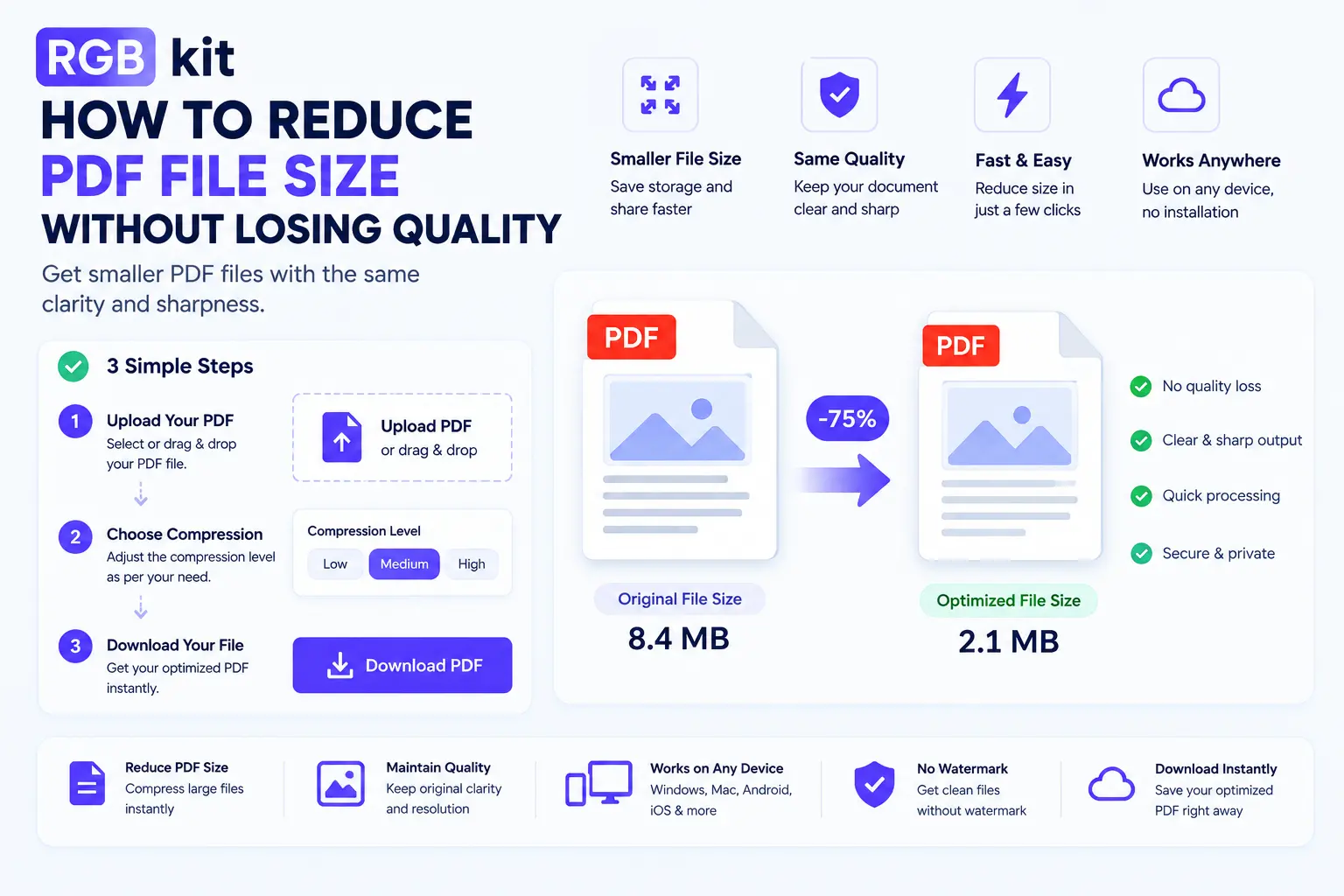
Large PDF files create friction. They bounce back from email servers with file size limits. They take forever to upload to portals that cap submissions at 10 or 25 MB. They slow down cloud storage syncing and eat through mobile data plans.
The instinct is to just “make it smaller,” but naive compression can destroy image quality, blur text, and make charts illegible. A good compression tool reduces file size intelligently — optimizing images, removing redundant metadata, streamlining internal file structure — while keeping the visual output virtually indistinguishable from the original.
This matters most for documents with high-resolution images, like real estate listings with property photos, architectural plans with detailed renderings, or marketing collateral with full-bleed graphics. You can often cut file size by 50–80% without any visible quality loss.
Compress PDF — reduce your PDF’s file size while maintaining visual quality.
10. Sign a PDF Electronically
The print-sign-scan workflow should have died years ago, but it lingers because people don’t realize how easy electronic signing has become. You receive a contract as a PDF. You print it. You sign it with a pen. You scan it back into a PDF. You email the scanned version. The recipient now has a lower-quality copy of the document with your signature as a blurry image.
An electronic signature tool lets you sign the PDF directly — no printing, no scanning, no quality loss. You draw your signature with your mouse or trackpad, place it on the document, and download the signed version. The result is a clean, professional-looking document that’s ready to send in seconds.
For freelancers, small business owners, remote workers, and anyone who signs documents regularly, this eliminates one of the most annoying analog steps in an otherwise digital workflow.
Esign PDF — draw your signature and place it directly on the document.
11. Rotate PDF Pages
Scanned documents are notorious for coming in sideways or upside down. Someone feeds a stack of papers into a scanner at the wrong orientation, and you end up with a PDF where half the pages are landscape, a quarter are rotated 180 degrees, and the rest are fine. It’s surprisingly common, and it makes the document nearly unusable for anyone trying to read it on screen.
A rotation tool lets you fix individual pages or the entire document in a single step. Rotate by 90 degrees left or right, flip 180 degrees, or correct every page at once. The process takes seconds and produces a properly oriented document that’s easy to read, print, and share.
This is also useful when you deliberately want to change page orientation — for example, converting a portrait-oriented presentation into landscape for a slide deck, or rotating a wide table so it displays correctly.
Rotate PDF — fix page orientation with a single click, one page at a time or all at once.
12. Convert Word Documents to PDF
Nearly every professional workflow eventually requires turning a Word document into a PDF. You draft the report in a word processor, but you send the final version as a PDF. You write the proposal in a collaborative editor, but the client wants a PDF attachment. You create the resume in a document editor, but the job application portal only accepts PDF uploads.
While most word processors have a built-in “Save as PDF” option, the results aren’t always consistent. Fonts sometimes change, margins shift, and linked images occasionally disappear. A dedicated conversion tool handles these edge cases more reliably, producing a PDF that faithfully preserves the original formatting, fonts, images, and layout.
This is particularly important for documents with complex formatting — multi-column layouts, embedded charts, custom fonts, and headers with logos — where even small rendering differences can make the output look unprofessional.
Doc to PDF — upload a Word document and download a perfectly formatted PDF.
13. Convert PDF Back to an Editable Word Document
Sometimes you need to go the other direction. You receive a PDF but need to make substantial edits — not just a quick typo fix, but major restructuring, paragraph rewrites, or reformatting. Direct PDF editing works well for small changes, but for heavy rewrites, working in Word is simply faster and more flexible.
A PDF-to-Word conversion tool extracts the text, images, and layout from the PDF and reconstructs them as an editable Word document. The better the original PDF was structured (text-based rather than scanned), the more accurate the conversion.
This is valuable for anyone who receives reports, contracts, or templates as PDFs and needs to repurpose the content — updating last year’s annual report with new figures, adapting a partner’s template for your own use, or pulling content from a finished PDF into a new document.
PDF to Doc — convert any PDF into an editable Word file while preserving formatting.
14. Convert Images to PDF Documents
You took photos of whiteboard notes during a meeting. Or you have a collection of JPEG scans that need to become a single, organized document. Or a client sent product images that you need to compile into a presentable file for internal review.
An image-to-PDF converter takes one or more image files and packages them into a clean PDF document. Each image becomes a page, and the result is a professional, easy-to-share file that looks far more polished than sending a folder full of loose JPEGs.
This is especially useful for creating photo portfolios, assembling visual documentation for insurance claims, compiling receipts for expense reports, or turning hand-drawn sketches into a shareable document format.
Image to PDF — upload images in any format and combine them into a single PDF document.
15. Extract Specific Pages from a PDF
You don’t always need the whole document. Maybe you only need the signature page from a 40-page contract. Or the financial summary from a quarterly report. Or one chapter from a textbook.
Rather than sending someone a massive file and telling them to scroll to page 27, you can extract just the pages you need and create a new, smaller PDF containing only the relevant content. The extracted pages retain their original quality and formatting — they’re not screenshots or re-renders, they’re the actual pages pulled directly from the source file.
This is cleaner than splitting (which divides the entire document into parts) and more precise than printing individual pages to PDF (which sometimes introduces subtle formatting changes). It gives you exactly the pages you want, nothing more, nothing less.
Extract Pages from PDF — select specific pages and download them as a new PDF.
Bonus: The Tools You Already Know (But Might Not Know Are Free)
Beyond the 15 tools above, there are a few more that people commonly assume require paid software but are actually available for free online.
Merge PDF lets you combine multiple PDF files into a single document — useful for assembling applications, reports, or client packages from separate files.
Split PDF does the opposite, breaking a single PDF into multiple files based on page ranges you define.
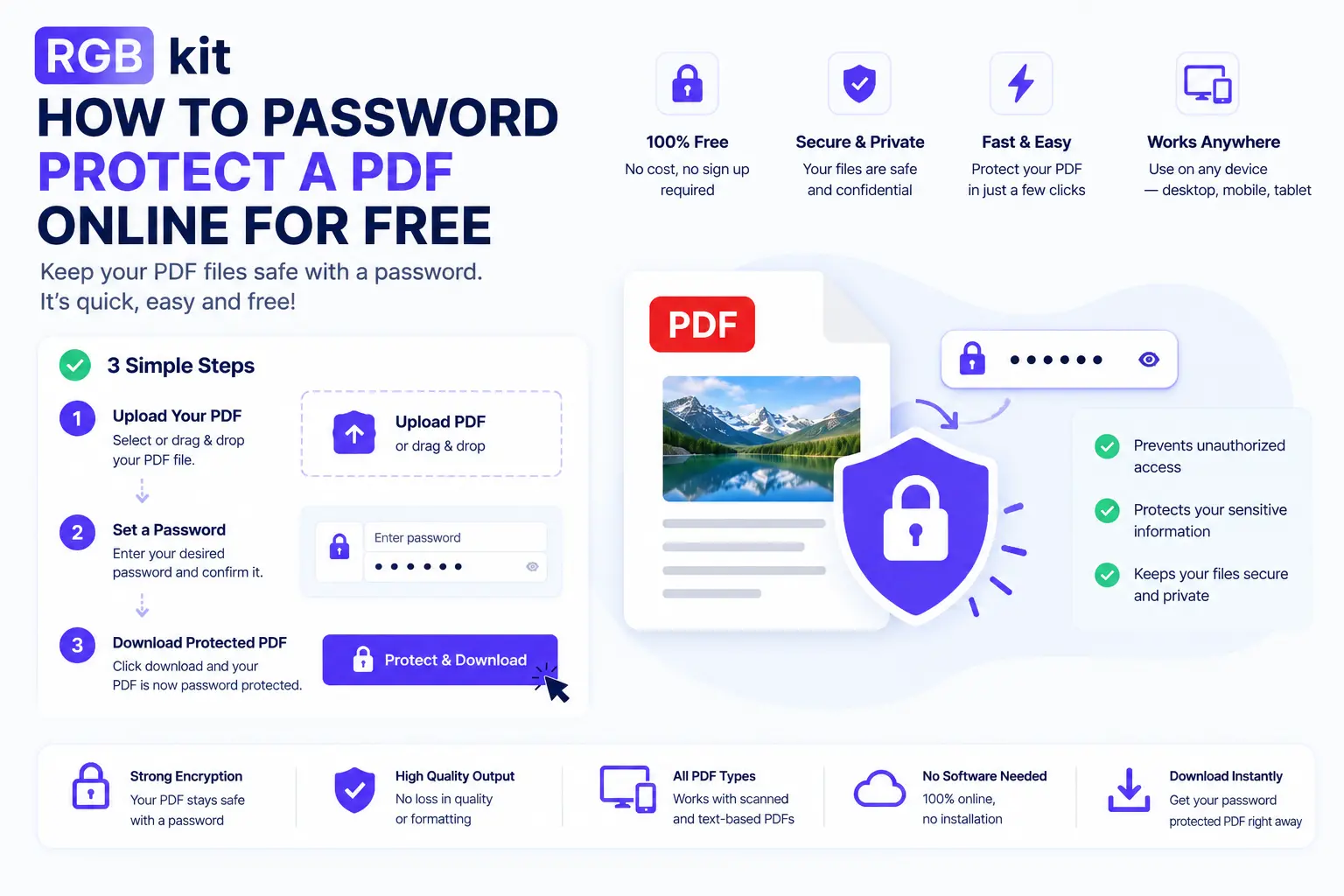
Lock PDF adds password protection to any PDF, ensuring only authorized recipients can open and view the document.
Unlock PDF removes password protection from a PDF when you have the current password — useful when you no longer need the security layer.
Edit PDF lets you add text, edit existing text, insert images, highlight content, draw shapes, and sign documents — all directly in the browser.
Why Free Online PDF Tools Have Gotten So Good
A few years ago, working with PDFs beyond basic viewing required expensive desktop software. Premium PDF editors cost hundreds of dollars a year. Alternatives were clunky, unreliable, or buried behind paywalls that only revealed themselves after you’d already uploaded your file.
That landscape has changed dramatically. Browser-based PDF tools have matured to the point where they handle the vast majority of everyday PDF tasks without any installation, without creating an account, and without spending a cent. Processing happens directly in your browser, which means your files stay on your device and never get uploaded to some unknown server.
The tools listed in this guide aren’t watered-down versions of paid software. They’re purpose-built utilities that do one thing and do it well — whether that’s compressing a file, extracting an image, redacting a paragraph, or adding a signature. For power users who process thousands of documents a day, enterprise software still has its place. But for everyone else — freelancers, students, small business owners, remote workers, and anyone who occasionally needs to do something with a PDF — free online tools are more than enough.
Final Thoughts
PDFs are everywhere, and the things you need to do with them go far beyond opening and reading. Extracting images, redacting private data, scanning handwritten documents, compressing oversized files, reordering scrambled pages, signing contracts without a printer — these are real, everyday tasks that most people solve through tedious workarounds because they don’t know better tools exist.
Now you know they do. Every tool on this list is free, works in your browser, and requires no signup or installation. Bookmark the ones you’ll use most, and stop wasting time on manual workarounds for problems that were solved years ago.