Every contract you’ve signed. Every invoice you’ve received. Every tax return you’ve filed. Every boarding pass, job application, insurance claim, and government form you’ve ever dealt with — there’s a very good chance it was a PDF.
The Portable Document Format is so embedded in modern life that most people don’t even think about it. They just open a PDF, do what they need to do, and move on. But behind that simplicity is a format that solved one of computing’s oldest problems: how to make a document look the same on every screen, every printer, and every operating system.
This guide explains what a PDF actually is, why it became the world’s default document format, how it compares to other formats, and how to do everything you need with PDF files using free online tools.
What Is a PDF?
PDF stands for Portable Document Format. It was invented in 1993 to solve a specific problem: documents looked different depending on which computer, printer, or software was used to open them. Fonts changed, layouts shifted, images moved — the document you created was not the document the recipient saw.
PDF fixed this by encoding every element of a document — text, fonts, images, vector graphics, layout — into a self-contained file with a fixed layout. The result is a document that looks identical whether you open it on a Windows laptop, a Mac, a Linux machine, an iPhone, or an Android tablet.
Since 2008, PDF has been an open international standard maintained by the International Organization for Standardization (ISO 32000). It’s not owned by any single company — anyone can create software that reads or writes PDFs.
PDF by the numbers
-
Over 2.5 trillion PDF files exist worldwide
-
73% of businesses use PDF as their primary document format
-
The average office worker handles roughly 10,000 PDFs per year
-
PDF is supported by every major operating system, browser, and email client
Why PDF Became the Standard
Several file formats can store documents — Word, HTML, plain text, RTF, ODF. So why did PDF win? Because it solves problems that no other format handles as well.
1. Universal compatibility
A PDF opens the same way on every device. There’s no “which version of Word do you have?” problem, no missing font warnings, no layout that breaks on a different screen size. What you create is what everyone sees.
2. Fixed layout
Unlike Word documents or HTML pages, which reflow text based on window size, a PDF has a fixed layout. Every character, image, and graphic stays exactly where it was placed. This is critical for:
-
Legal contracts where precise wording and formatting matter
-
Architectural and engineering drawings with exact measurements
-
Marketing materials where brand consistency is non-negotiable
-
Government forms with rigid field placements
3. Compact file size
PDFs use efficient compression for text, images, and graphics. A document that’s 15 MB as a Word file with embedded images might be 3 MB as a PDF. Smaller files mean faster email attachments, less storage consumption, and quicker downloads.
4. Security features
PDFs support password protection, encryption, digital signatures, and permission controls. You can:
-
Lock a PDF so only authorized users can open it
-
Restrict printing, copying, or editing
-
Add a digital signature to verify authenticity and integrity
-
Redact sensitive information permanently
No other common document format offers this depth of built-in security.
5. Long-term archiving
The PDF/A variant is specifically designed for long-term preservation. Government agencies, courts, and regulated industries use PDF/A to archive documents that must remain readable and unchanged for decades. The format embeds all fonts and metadata, ensuring nothing is lost over time.
6. Interactive elements
Despite its fixed layout, PDF supports:
-
Hyperlinks — clickable URLs and internal navigation
-
Bookmarks — jump to specific sections in long documents
-
Fillable forms — text fields, checkboxes, radio buttons, dropdown menus
-
Embedded multimedia — audio, video, and 3D models
-
Annotations — highlights, comments, stamps, and drawings
7. Metadata
Every PDF can include hidden metadata — title, author, subject, keywords, creation date, modification date. This helps with organization, search, and compliance without affecting the document’s visual appearance.
PDF vs. Other Document Formats
|
Feature |
|
Word (.docx) |
HTML |
Plain Text (.txt) |
|---|---|---|---|---|
|
Looks the same everywhere |
Yes |
No — depends on fonts and software version |
No — depends on browser and screen size |
Yes, but no formatting |
|
Fixed layout |
Yes |
No — reflows based on page settings |
No — responsive by design |
No |
|
Editable by default |
No — preserves integrity |
Yes |
Yes |
Yes |
|
Supports images and graphics |
Yes |
Yes |
Yes |
No |
|
Password protection |
Yes |
Limited |
No |
No |
|
Digital signatures |
Yes |
Limited |
No |
No |
|
File size |
Compact |
Often larger with embedded media |
Varies |
Tiny |
|
Long-term archiving (ISO standard) |
Yes (PDF/A) |
No |
No |
No |
|
Best for |
Sharing, printing, archiving, legal use |
Drafting and collaborative editing |
Web content |
Quick notes and data |
The key distinction: Word is for creating and editing documents. PDF is for sharing and preserving them. Most professional workflows involve drafting in Word (or similar) and distributing as PDF.
Common Types of PDF Files
Not all PDFs are created the same way, and the creation method affects what you can do with the file.
Text-based PDFs
Created by exporting from Word, Excel, PowerPoint, or design software. Text is selectable, searchable, and can be edited with a PDF editor. This is the most common type.
Scanned PDFs (image-based)
Created by scanning a physical document. The PDF contains images of each page, not actual text. You can’t select, search, or copy text from a scanned PDF unless you run OCR (Optical Character Recognition) on it first.
Fillable PDFs (forms)
Contain interactive form fields — text boxes, checkboxes, radio buttons, dropdown menus, and signature fields. Used for applications, surveys, intake forms, and agreements.
PDF/A (archival)
A standardized variant designed for long-term preservation. All fonts, colors, and images are embedded within the file. Used by government, legal, and regulated industries for compliance.
Everything You Can Do With PDF Files Online
Most people think of PDFs as “view-only” documents. In reality, you can do almost anything with a PDF if you have the right tools. Here’s a complete breakdown.
Edit a PDF
Need to fix a typo, add your signature, insert an image, or highlight a section?
Edit PDF — add text, edit existing text, insert images, highlight with multiple colors, draw shapes, and sign documents. All within your browser.
Merge multiple PDFs into one
Have separate files that need to become a single document?
Merge PDF — upload multiple PDFs and combine them into one file in any order. Perfect for assembling reports, applications, or client packages.
Split a PDF into parts
Need just a few pages from a long document?
Split PDF — extract specific page ranges or split every page into a separate file.
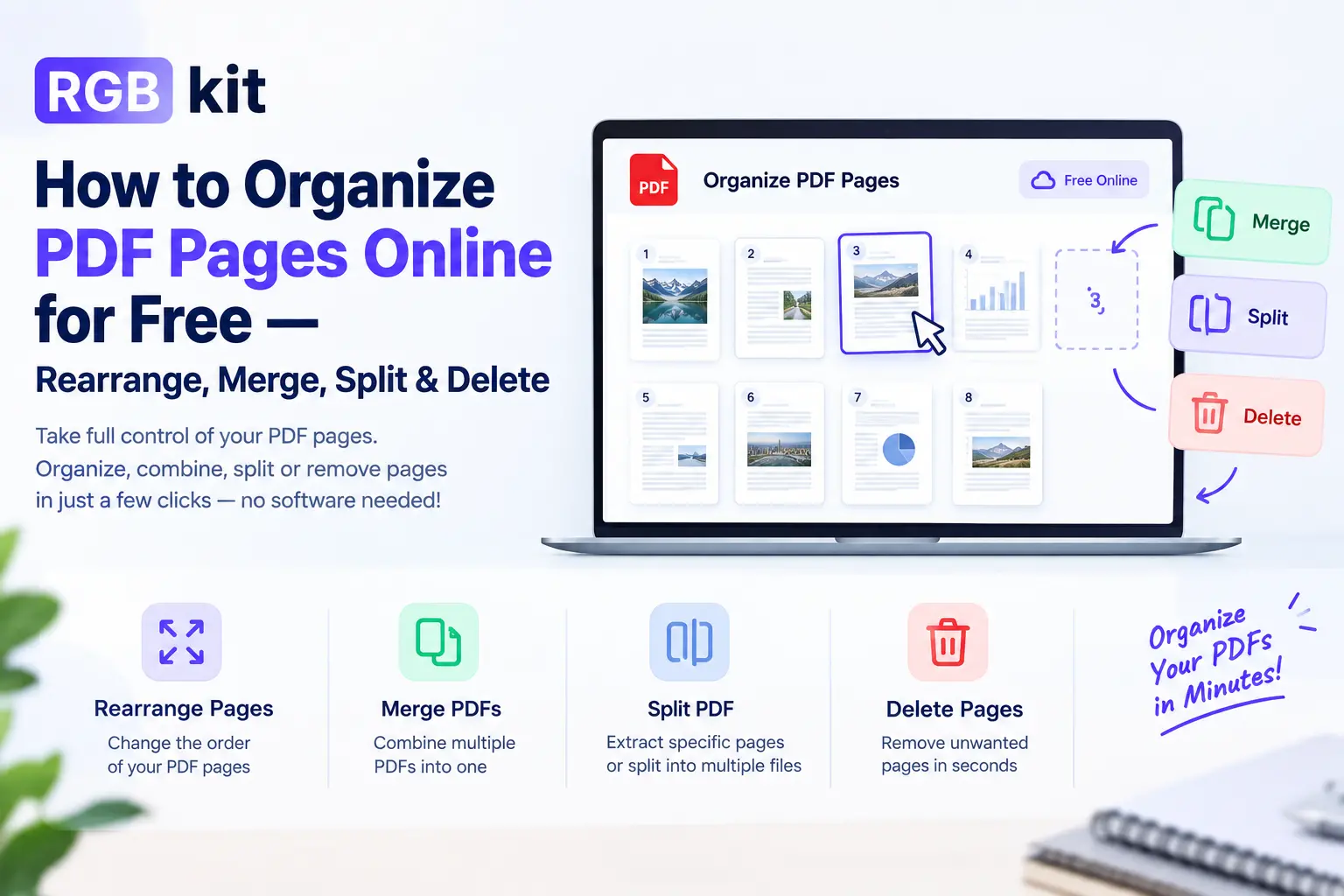
Organize, rearrange, and remove pages
Pages out of order? Blank pages need deleting? Need to rotate a page?
-
Organize PDF — drag, drop, delete, and rotate pages visually
-
Rearrange PDF Pages — reorder pages by drag and drop
-
Remove PDF Pages — select and delete specific pages
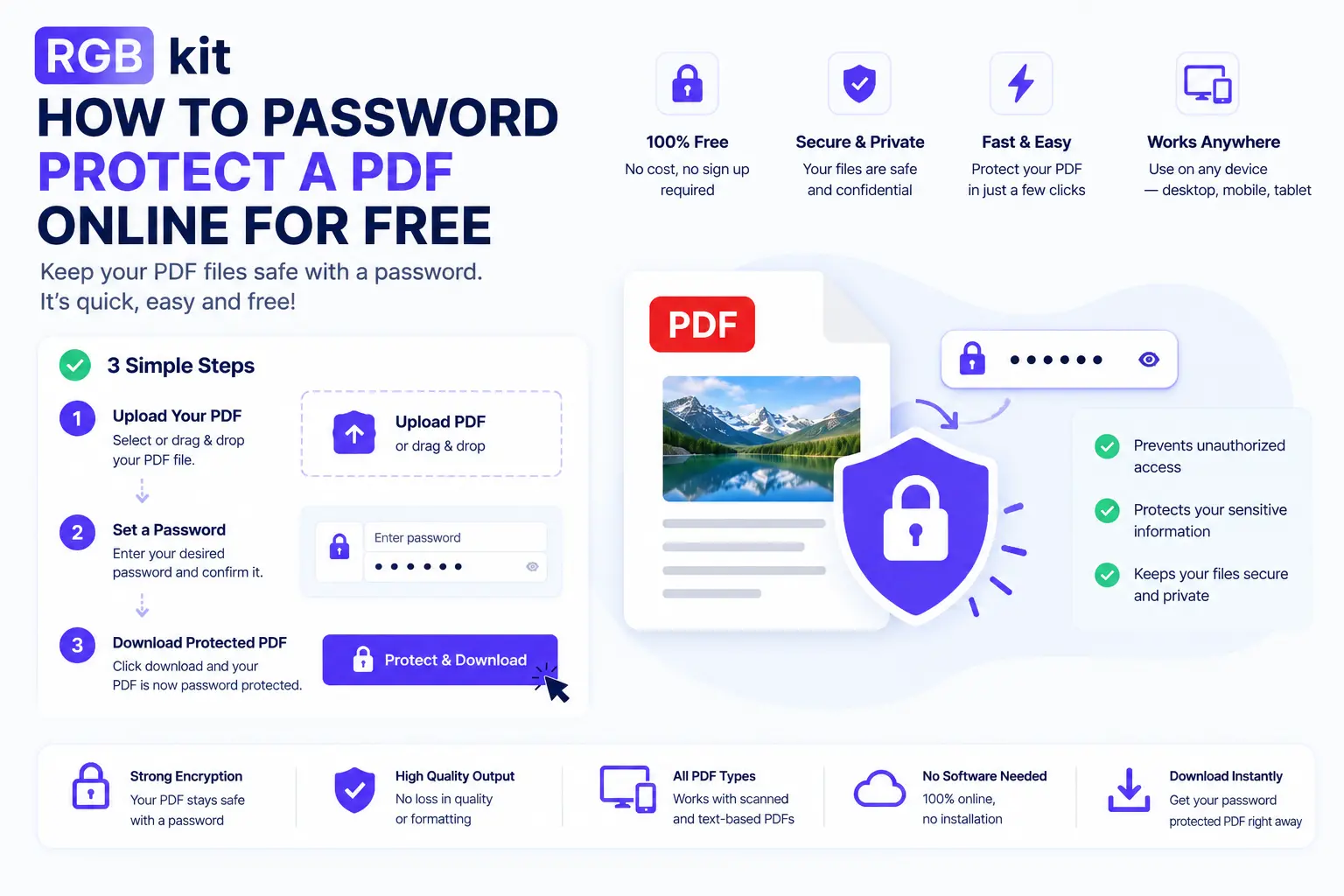
Password-protect a PDF
Sharing sensitive financial, legal, or personal documents?
Lock PDF — add a password so only authorized recipients can open the file.
Remove a password from a PDF
Have the password but want to remove the protection?
Unlock PDF — enter the current password and download an unlocked copy.
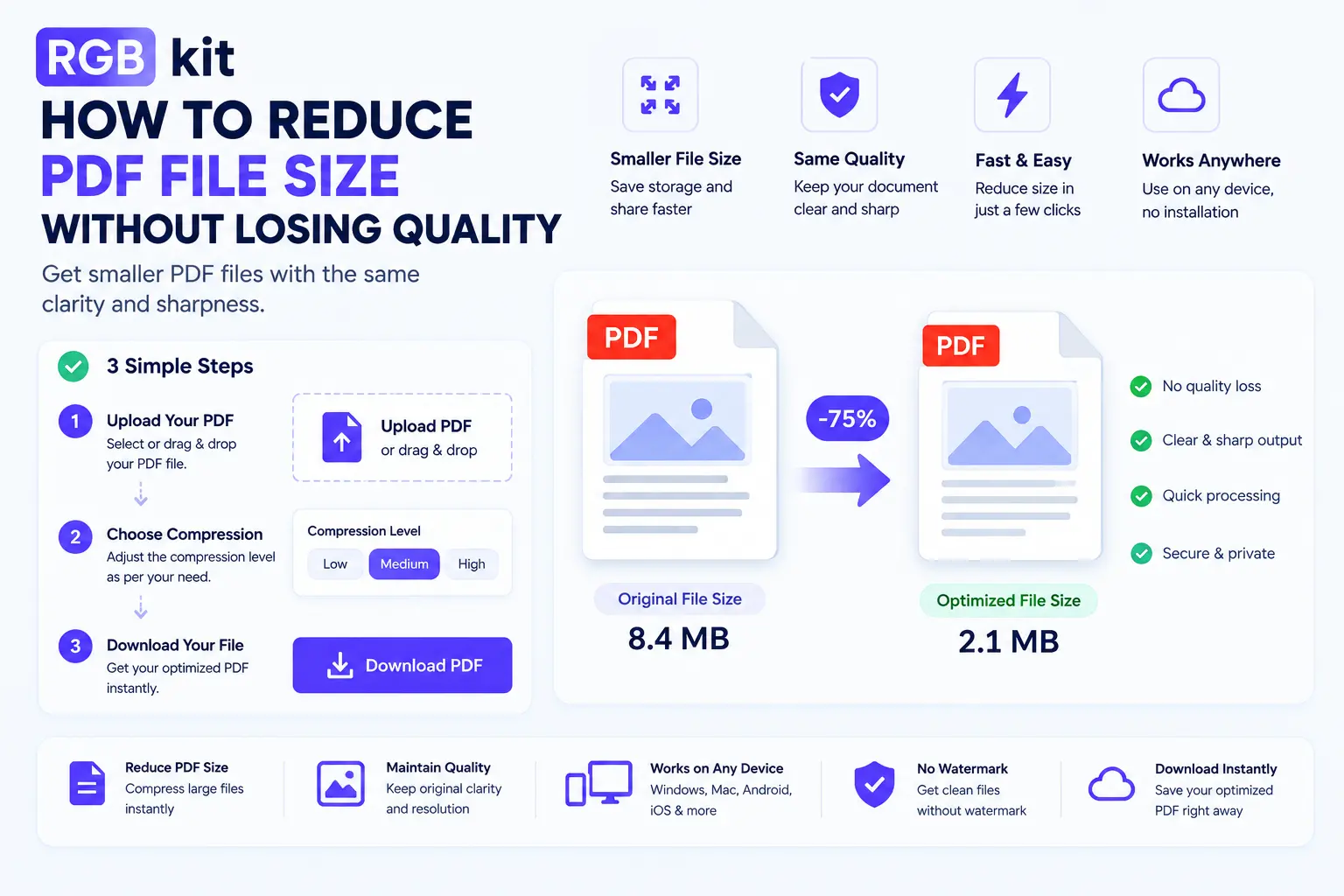
Compress a PDF
File too large to email or upload?
Compress PDF — reduce file size without significant quality loss. Essential for email attachments and upload limits.
Convert a webpage to PDF
Want to save an online article, receipt, or page before it disappears?
HTML to PDF — paste any URL and download the page as a PDF.
Convert between PDF and other formats
-
JPG to PDF — turn images into PDF documents
-
PDF to JPG — extract pages as images
-
Image to PDF — convert any image format to PDF
-
Doc to PDF — convert Word documents to PDF
-
PDF to Doc — convert PDF back to editable Word format
-
Excel to PDF — convert spreadsheets to PDF
Rotate pages
Scanned pages came in sideways?
Rotate PDF — rotate individual pages or the entire document by 90, 180, or 270 degrees.
Add page numbers
Long document without numbering?
Add Page Numbers — insert numbered headers or footers automatically.
Add a watermark
Need to mark a document as “Draft,” “Confidential,” or add your brand?
Watermark PDF — add text or image watermarks to every page.
Sign a PDF electronically
Need to sign a form, contract, or agreement?
Esign PDF — add your electronic signature directly to the document.
Redact sensitive information
Need to permanently remove Social Security numbers, financial data, or personal details before sharing?
Redact PDF — black out sensitive content so it’s permanently removed from the file.
Extract text from scanned PDFs
Have a scanned document you can’t copy text from?
OCR PDF — convert scanned images to searchable, selectable text.
Extract images from a PDF
Need the photos or graphics embedded in a document?
Extract Images — pull all images from a PDF and download them separately.
Extract specific pages
Need to pull out individual pages without splitting the whole file?
Extract Pages — select specific pages and download them as a new PDF.
When to Use PDF and When Not To
Use PDF when:
-
Sharing finished documents — reports, proposals, invoices, contracts
-
Printing — PDF guarantees the printed output matches the screen
-
Archiving — long-term storage where the document must remain unchanged
-
Collecting signatures — PDF supports electronic and digital signatures
-
Protecting content — password protection and permission controls
-
Submitting files — job applications, government forms, insurance claims
Use a different format when:
-
Collaborating on a draft — Word or Google Docs allow real-time editing and comments
-
Building a webpage — HTML is designed for web content
-
Working with data — Excel or CSV for spreadsheets and datasets
-
Creating a presentation — PowerPoint or similar tools offer slide functionality
The general rule: draft in an editable format, distribute as PDF.
Frequently Asked Questions
What does PDF stand for?
PDF stands for Portable Document Format. “Portable” means the file looks and works the same on every device, operating system, and printer.
Can I edit a PDF?
Yes. Use a PDF editor to modify text, add images, insert signatures, highlight content, and draw shapes — all directly in your browser for free.
How do I open a PDF?
Every modern operating system, web browser, and mobile device can open PDFs natively. On desktop, double-click the file. On mobile, tap to open. No special software is required.
Is PDF free to use?
Yes. PDF is an open international standard. Anyone can create, view, and share PDF files for free. While some advanced editing tools charge fees, many — like RGBKit — offer full-featured PDF tools at no cost.
What’s the difference between PDF and PDF/A?
PDF is the standard format for viewing and sharing documents. PDF/A is a specialized variant designed for long-term archiving — it embeds all fonts and metadata to ensure the document remains readable and unchanged decades into the future.
Can I convert a PDF to Word?
Yes. Use a PDF to Doc converter to convert a PDF into an editable Word document. Note that complex layouts may require minor adjustments after conversion.
How do I reduce the file size of a PDF?
Use a PDF compressor to reduce file size. This is especially useful for email attachments, upload limits, and conserving cloud storage.
Can I password-protect a PDF?
Yes. Use the Lock PDF tool to add a password. Only people who know the password will be able to open and view the document.
Final Thoughts
PDF isn’t glamorous. It doesn’t trend on social media or make headlines. But it’s quietly the most important file format in the world — the invisible infrastructure behind contracts, invoices, applications, reports, tax returns, medical records, and billions of other documents exchanged every day.
Understanding how to work with PDFs — editing, merging, splitting, compressing, protecting, converting — isn’t optional anymore. It’s a basic digital skill, like knowing how to send an email or use a spreadsheet.
RGBKit’s complete suite of PDF tools makes all of it free and accessible from any browser. No installations, no accounts, no subscriptions.
Whatever you need to do with a PDF, there’s a tool for it.
Explore free PDF tools: Edit PDF | Merge PDF | Split PDF | Compress PDF | Lock PDF | HTML to PDF